Guides
Record and Replay
Open the command palette and choose Start Recording. Run up to 12 steps, then choose Save Recording, type a name and press Return.
Scratch can record Fill Down, Fill Right, Clear Cell Contents and cell formatting commands. You can use their shortcuts, the Format menu or the command palette. The commands take effect as you record them. To discard the recording, choose Cancel Recording. Use Undo in the grid to reverse an edit you made while recording.
Try it on another range
- Select a column of cells with a formula in the first row. Record Fill Down, Format as AUD and Add Decimal Place.
- Save the recording as AUD totals. Select a different range with its own formula in the first row.
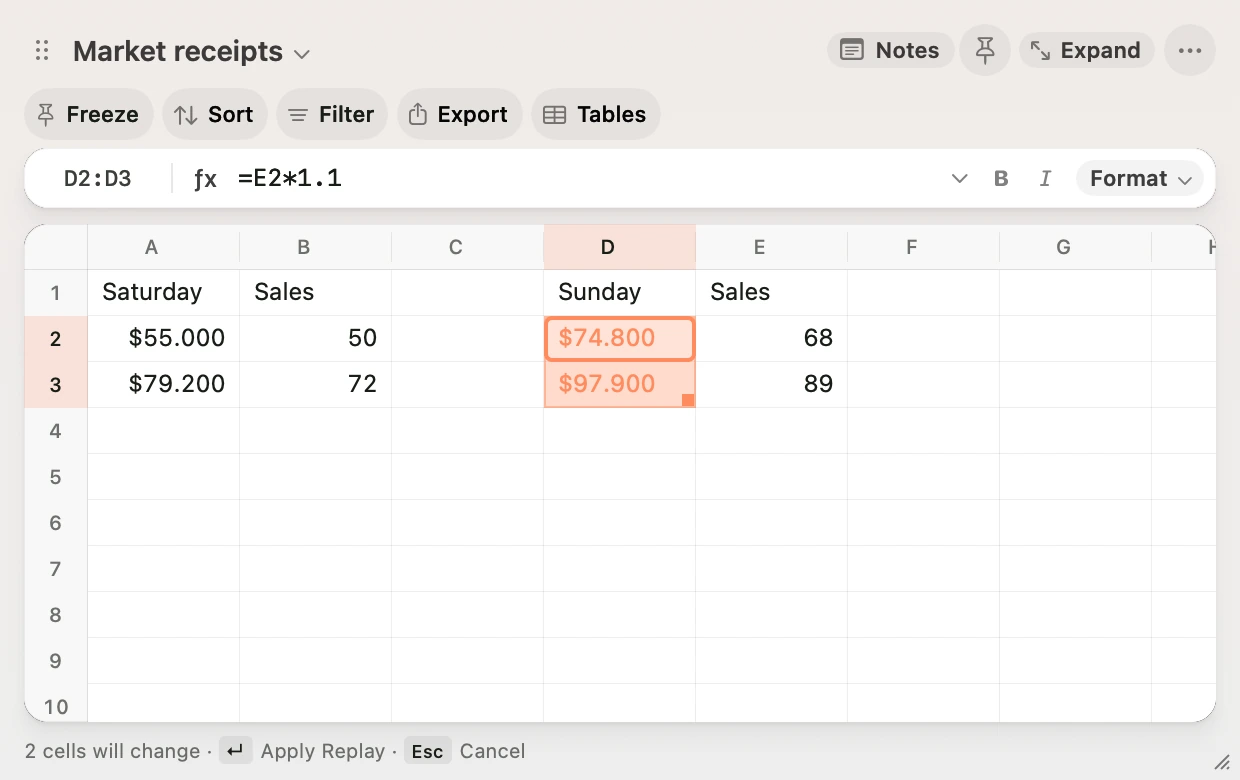
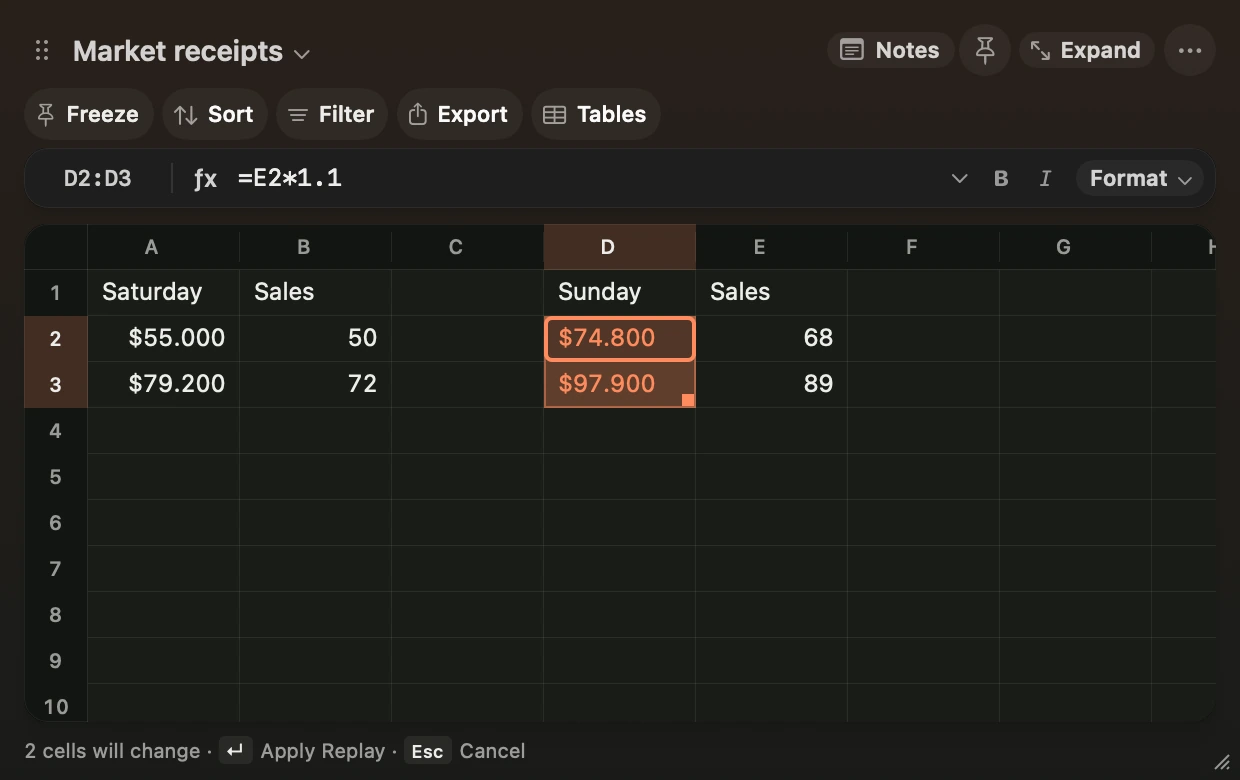
- In the command palette, choose Replay AUD totals. Scratch highlights the cells it would change and shows their resulting text.
- Press Return to apply the replay as one edit, or Escape to discard the preview. Press ⌘Z to undo the applied replay.
Each step uses the new selection’s contents and formatting. Relative references shift as they do with ordinary Fill Down and Fill Right. Scratch saves named replays on this Mac. Use Remove Saved Replay in the command palette to remove one.