Guides
Grid and shortcuts
Type on the grid to edit the selected cell. Return commits and moves down. Tab commits and moves right, or accepts the visible formula suggestion first.
Grid toolbar
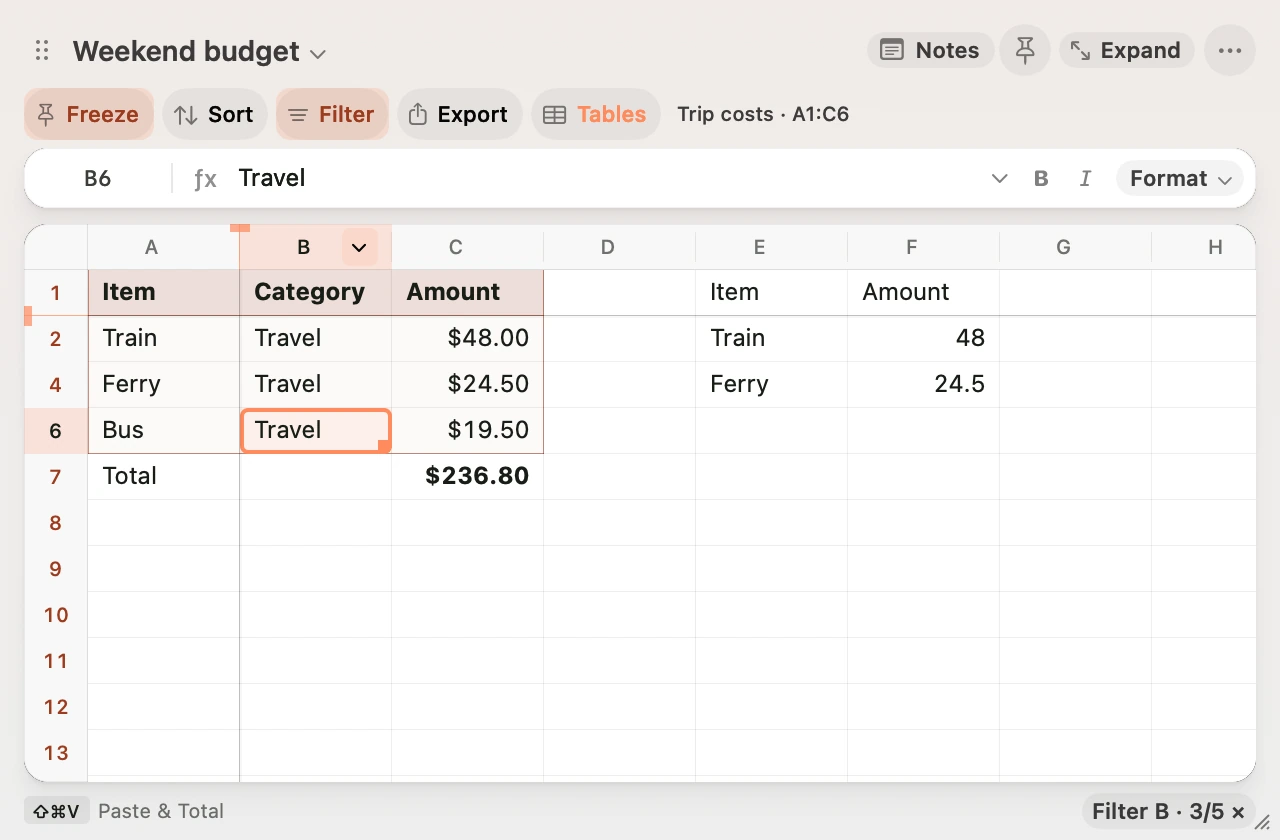
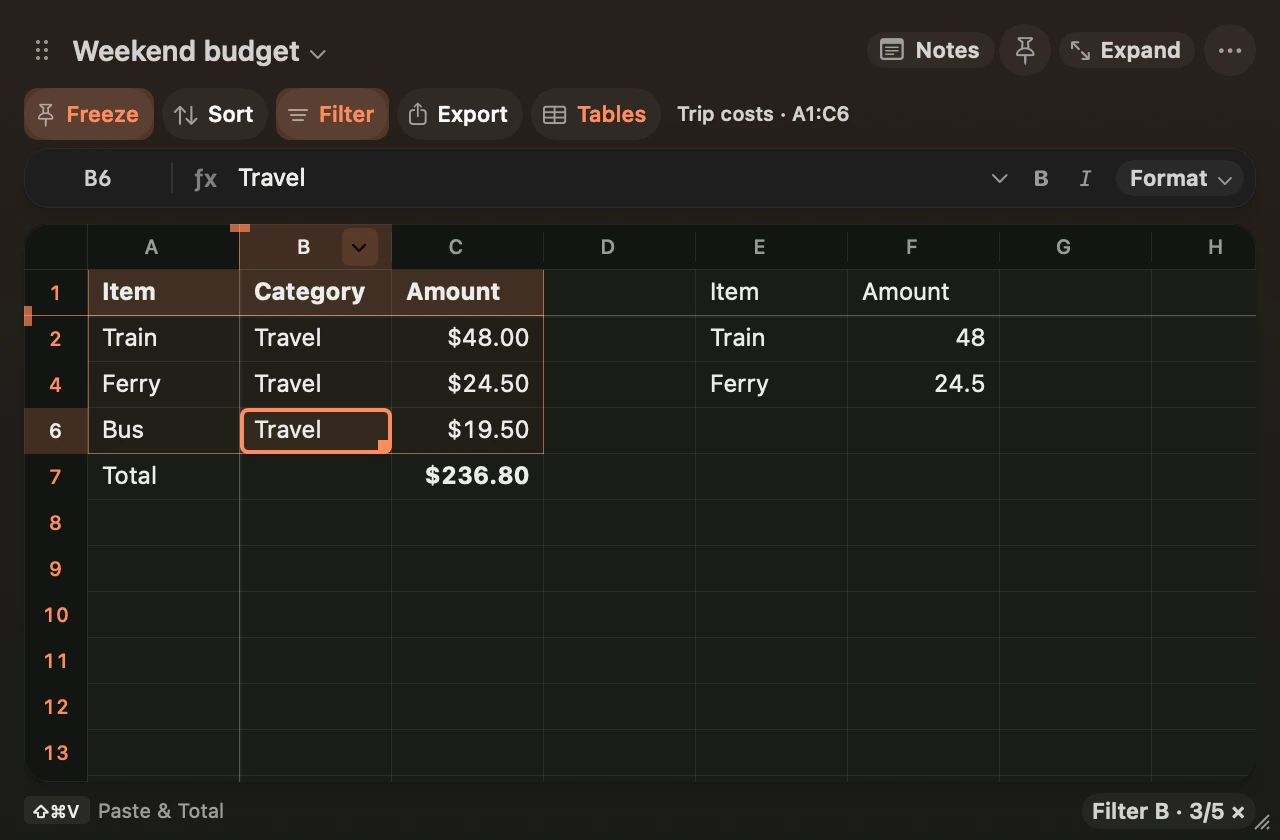
Use the labeled controls just above the formula bar. Freeze keeps headings in view, Sort and Filter use the selected column, Export offers file formats for the current selection or workbook, and Tables creates or finds a named table. The freeze and filter buttons highlight while those features are active. Filtered row numbers also take the accent colour. Hover a column letter and click its chevron to open the same controls at that column.
The footer shows a selection’s sum, average and count when they’re available. A uniform number, currency or percent format carries through to the totals. Copying a result keeps its full precision.
Move and select
| Keys | Action |
|---|---|
| Arrows | Move between cells |
| Shift+Arrows | Extend or shrink the selection |
| ⌘+Arrows | Move to the next edge of populated data |
| ⇧Space, ⌃Space | Select the current row or column |
| ⌘A | Select the data block. Press again for the populated bounds. |
| F2, Escape | Edit the cell in place, or cancel the edit |
| Delete | Clear the selected cells |
| ⌘Z, ⇧⌘Z | Undo or redo an edit |
Shift+Tab and Shift+Return reverse direction. Tab wraps within a selected block. After tabbing across a row, Return moves to the next row at the column where you started.
Drag from one cell to another to select a range. Hold Shift when you start the drag to extend the current selection from its original cell. Hold the pointer at a grid edge to keep scrolling and selecting. Move back inside the grid to pause scrolling, or release to finish.
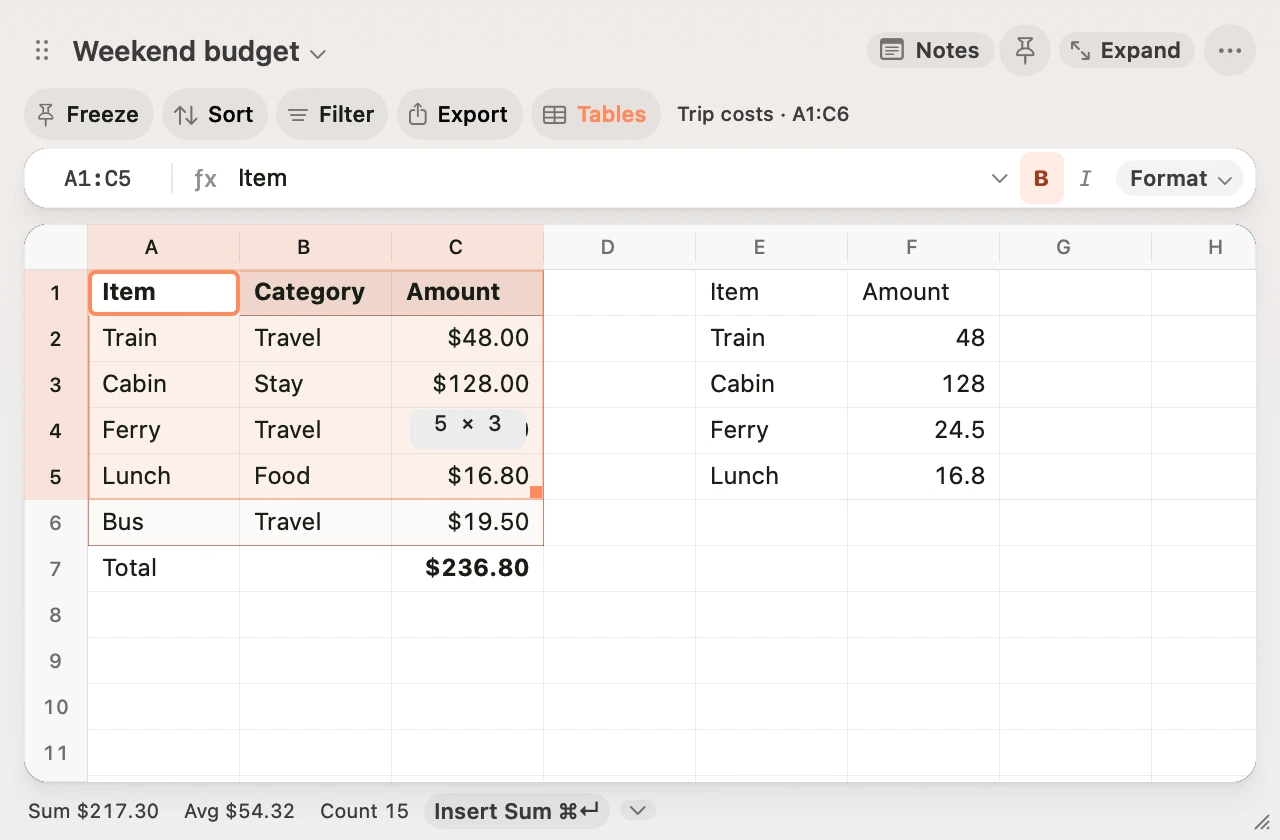
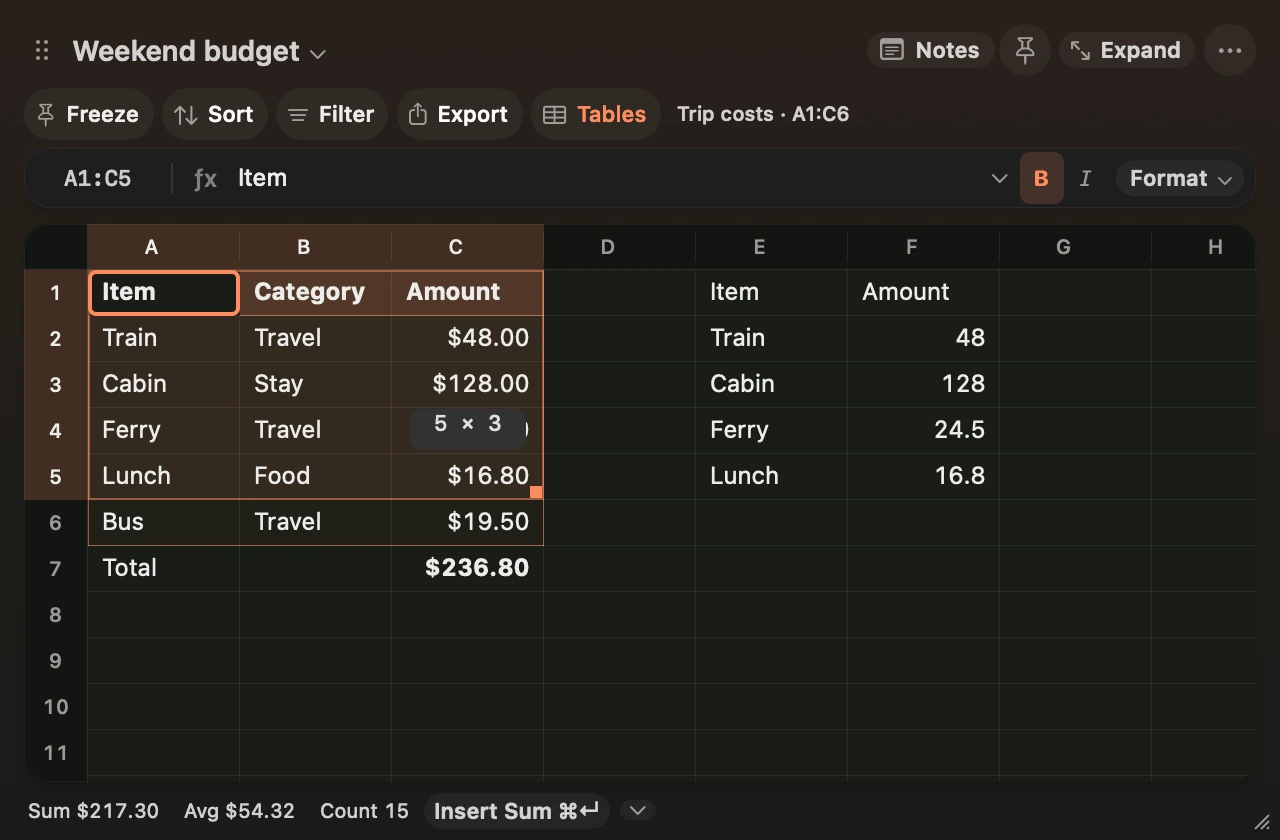
While dragging, Scratch shows the selection’s rows × columns. The active cell stands out inside the selected block. Drag the border of a populated selection to move its cells, or hold Option to copy them. The destination shows Move or Copy and previews the contents. A copy shifts relative references, and a move keeps formula addresses as written. Cell annotations and links stay at their existing addresses. Occupied destinations are protected, and Escape cancels the drag.
Press ⌘F to search displayed values, formulas or notes. Return goes to a match. Escape returns to the pane where you opened Find. Find shows the first 80 matches.
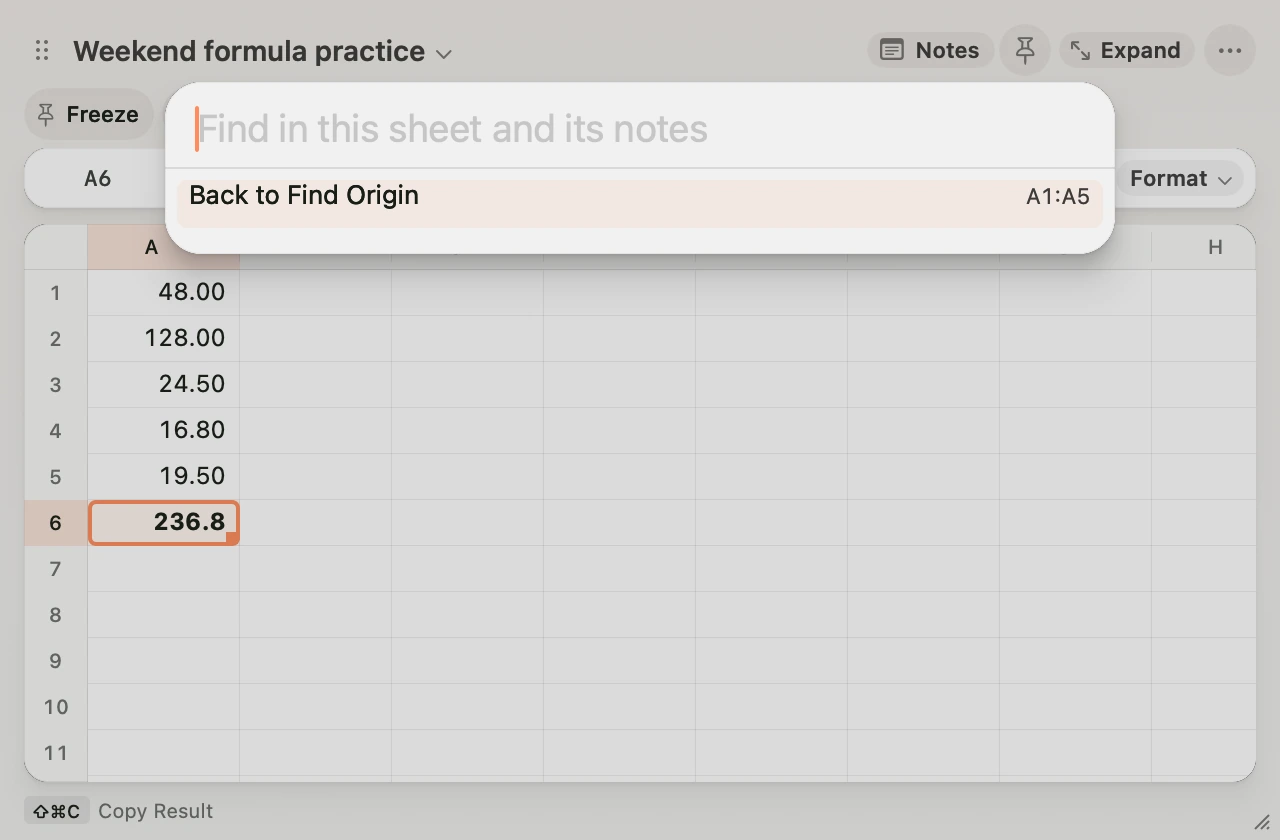
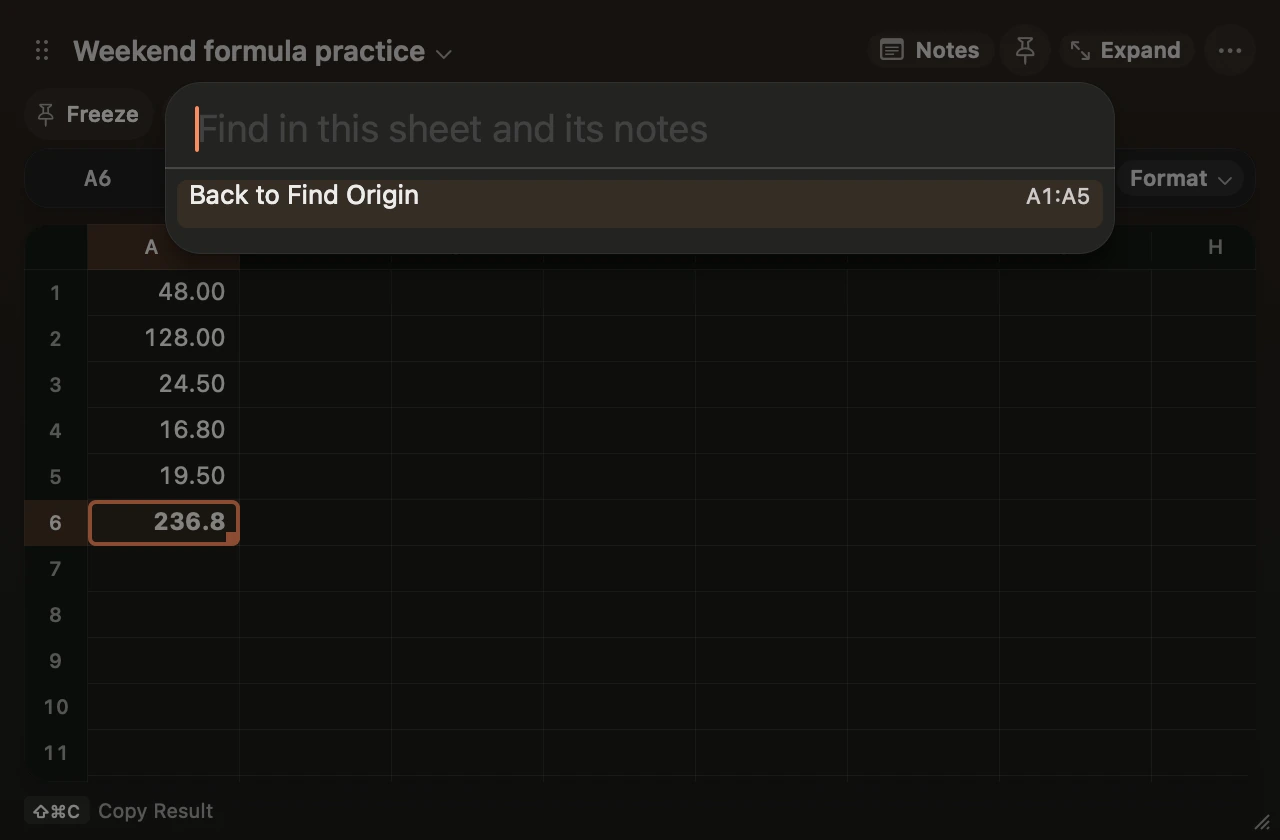
After opening a match, press ⌘F then Return, or choose Back to Find Origin in the command palette. Scratch restores your grid selection and scroll position, or your cursor and selection in Notes if you started there. The return position lasts until you use it, open another match or leave the sheet.
Complete a formula
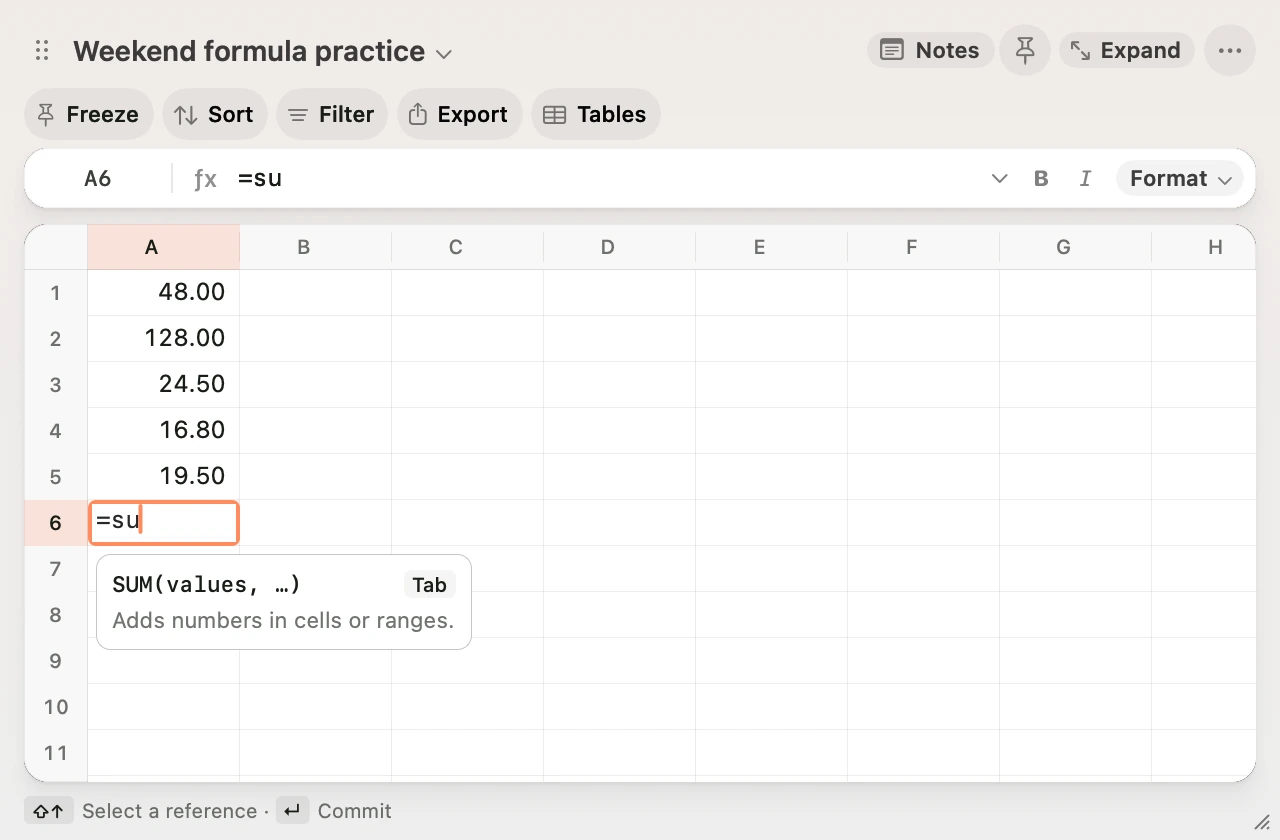
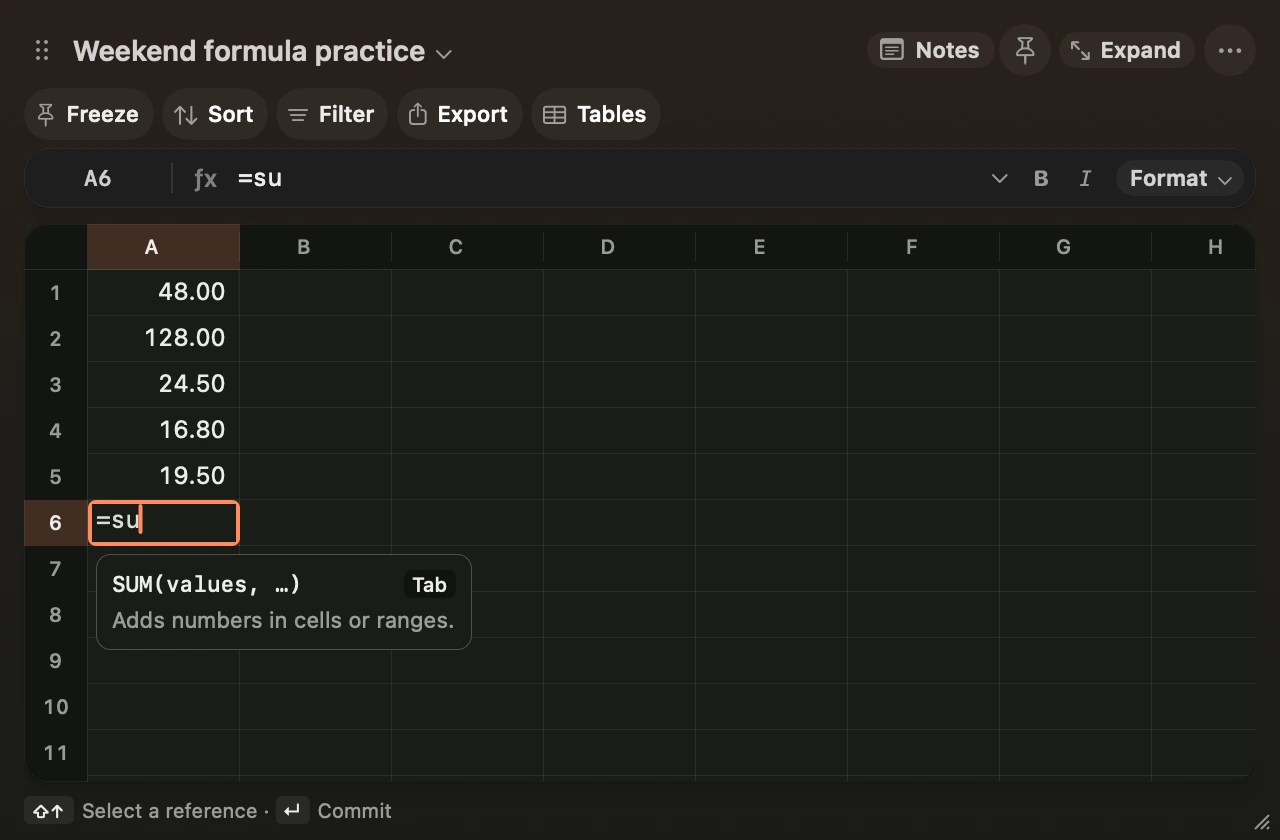
Type =su in a cell to see SUM(values, …) and what the function does. Press Tab or click the suggestion to insert SUM( and keep typing. Square brackets indicate optional arguments. For example, XLOOKUP takes a lookup key, a lookup range, a result range and an optional fallback.
Select separate ranges
Select the first range, then ⌘-click a cell or hold ⌘ while dragging to add another range. From the keyboard, open Add Range to Selection in the command palette and enter an address such as D2:F4.
Formatting, Delete and Copy Result apply across the selection. Overlapping ranges count each cell once. Undo restores the edits and the selection. Press Escape to keep the latest range.
Copying or pasting cell data, filling, replaying commands, viewing selection history and sending selected cells to Obsidian each use one range. Scratch saves the latest range when you leave the sheet or quit.
Save a named range
Select one rectangle, choose Name Selected Range, and enter a name such as Monthly totals. Choose Go to Named Range and type part of the name to select those cells again. Names are unique within a sheet and move with their cells when you insert or delete rows and columns. If you delete the cells, Undo brings the range back.
Use Remove Named Range to remove the name. To use a named range in a formula, see Work across sheets.
Named tables
Click any filled cell in a block of data, then choose Tables → Create Table from Selection. Scratch finds the connected block. For an exact range, drag across the header and the rows you want before choosing the command. Check the range and header row in the preview, type a name, and press Return. Press Escape to cancel.
Named tables stay in the grid, with a tinted header and outline so you can see where each one starts and ends. Tables can sit side by side. Click any cell in a table to see its name and range beside Tables, or use Sort, Filter, or Export on its cells.
- Sort starts with the selected column. Choose a different column if needed, then click Ascending or Descending to preview the order. Click Apply Sort to move the rows. The first row stays as a header. Cells move within the table’s columns. Formula references follow the cells they refer to. Press ⌘Z to undo.
- Filter shows matches as you type. Choose counted values or enter part of a displayed value. The panel shows the match count and a Clear button. Press Escape to restore the previous filter. Shaded cells mark excluded rows inside the table. Cells beside the table stay visible and row numbers stay in place. The arrow keys skip shaded cells. Each sheet has one active filter. Click the filter count to clear it.
- Export saves the table as a CSV named after it. With a filter active, choose Export Matching Rows as CSV to include the header and matching data, or choose the table by name to include every row.
Use Tables to jump to a table by name. With the cursor inside a table, the picker also offers actions to select it, rename it, or remove its name while keeping its cells. Row and column insertions and deletions update the table’s bounds and clear its active filter.
Add borders or style a table
Select a rectangle and choose Format → Cell Borders. Choose outside, inside, all edges, a bottom rule, or clear borders. The grid previews each choice. Click Apply or press Return to save it. Press Escape to cancel or ⌘Z to undo the change.
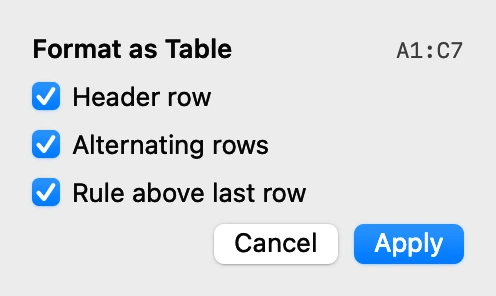
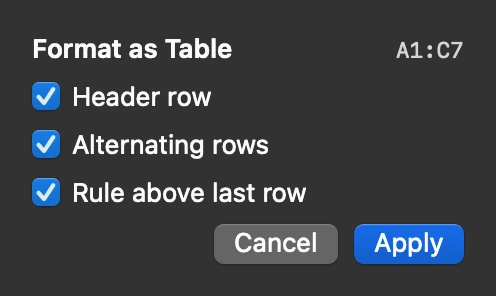
Use Format → Format as Table to preview a bold header, alternating rows, and a rule above the last row. From a single cell, Scratch uses its named table or the connected data block. Drag across the cells first to set the exact range. The last-row option styles the row and keeps its current values and formulas. Use Tables to name a range for sorting, filtering, or export.
Duplicate a sheet or import a file
Choose Duplicate Sheet to create a copy beside the current sheet. The copy includes cells, formulas, formatting, notes, named ranges, and capture evidence. Note links within the sheet point to the copied cells. Links to other sheets keep their destinations. Use Sync Editable Table with Obsidian to give the copy its own sync destination.
Choose Import CSV or TSV from the sheet menu or command palette, then pick a UTF-8 file. Scratch opens the data in a new sheet named after the file. Quoted fields and embedded line breaks are preserved. Fields beginning with = come in as text. Each file can contain up to 2,000 rows and 96 columns and must fit within 10 MB.
After Delete Current Sheet, click Undo in the footer or press ⌘Z to bring the sheet back. The footer offers Undo for eight seconds and keeps it visible while you hover over it. To bring back a sheet later, open Restore Deleted Sheet from the sheet menu or command palette.
Insert or delete rows and columns
Select a cell or a rectangular range, then open Rows and Columns from the sheet menu. You can also find these commands in the command palette.
| Command | What moves |
|---|---|
| Insert Rows Above | Adds a blank row for each selected row. Existing rows move down. |
| Insert Columns Before | Adds a blank column for each selected column. Existing columns move right. |
| Delete Rows | Removes the selected rows. Rows below move up. |
| Delete Columns | Removes the selected columns. Columns to the right move left. |
Formulas, including references such as $A$1, follow the cells that move. Inserting inside a referenced range expands it. Deleting part of a range shrinks it. A formula that loses its source shows #REF!. Linked notes, pinned results, and screenshot sources follow their cells too.
Use ⌘Z to undo the edit or ⇧⌘Z to redo it. If an insertion would push data or formatting beyond the last row or column, Scratch leaves the sheet as it was.
Move, hide or resize rows and columns
Hold Option and drag a row number or column letter. The blue line shows where it will land. To move several rows or columns together, select their headers first with Shift, then Option-drag one of them. Right-click a header for one-step moves, or use Move Selected Rows Up and related commands in the palette. Escape cancels and ⌘Z undoes the move. Formula references, linked ranges and formatting travel with the cells. If the move would split a referenced range, select the rest of the range and try again.
Right-click a row number or column letter and choose Hide Row or Hide Column. Use Hide Selected Rows or Hide Selected Columns in the command palette for a block. The grid skips hidden cells as you move. Formulas and exports still include their values. Choose Show All Rows or Show All Columns to reveal them. Hidden headers stay hidden when you reopen the workbook.
Drag the bottom edge of a row header to set its height. Double-click the edge or choose Fit Row Height to restore automatic height and let wrapped text size the row again.
Freeze rows and columns
Select B2, click Freeze, and choose Freeze Above and Left of Selection to keep row 1 and column A in view as you scroll. Freeze Top Row and Freeze First Column work independently. Find all three in the sheet menu under Freeze Panes, or in the command palette.
Drag the blue grip at the top of a vertical divider or the left end of a horizontal divider. The boundary snaps to a row or column as you drag. Release to save it or press Escape to cancel. Unfreeze Panes restores ordinary scrolling. Scratch remembers the boundary per sheet and makes room for scrolling cells when you shrink the window.
Sort rows
Click a cell in the column you want to sort by, then click Sort. You can also open the column’s chevron and choose Sort…. Check the column name and Rows to move, then choose Ascending or Descending to preview the first four results. Click Apply Sort to commit or press Escape to close the preview.
To sort an Amount column while keeping a Total on row 5, enter 2:4 in Rows to move. You can also select B2:B4 before clicking Sort. Scratch moves the other cells in those rows with the amounts. A selection that starts below the first populated row includes its first selected row by default. Use First row is a header to keep the first row of the scope in place.
To sort only the columns of a named table, select a cell inside that table. Frozen rows stay put. Numbers and formula results sort by value, text sorts naturally, and blanks go last. Equal values keep their order.
Formulas, annotations, named ranges and live note links follow their cells. If a preview would break up a referenced range, the message names the range and, for a formula on the sheet, its cell. Adjust Rows to move to keep the range together. Press ⌘Z to undo a sort or ⇧⌘Z to redo it.
Filter rows
Select a cell and click Filter, or hover a column letter and click its chevron. For a column with a short list of text values, click one or more counted choices. Type a word, number or fragment to search the displayed values. The grid and match count update as you type. Click Done or press Return to keep the filter. Press Escape to restore the previous filter and selection. Scratch matches displayed values, including formatted numbers and formula results. Case and accents are ignored. To limit the filter to a row band, select those rows before opening the controls.
The first row stays visible by default. Turn off First row is a header to include it when it is unfrozen. Arrow keys and cell entry skip hidden rows. The footer shows how many rows match. Click the filter button in the footer to clear it. Jumping directly to a hidden address also clears the filter.
A sheet-level filter lasts for the session and keeps the underlying rows and addresses intact. Selection operations and calculations still use the selected addresses. Exports and Obsidian sync include all rows within the chosen range. CSV carries the values and current sort order. Freeze panes and Scratch filters are view settings, so set them up in the destination app if you need them there.
Resize the window
Click Expand in the toolbar to fill the usable area of your display. Click Compact to return to the previous size. You can also drag the grip at the lower right to set the size yourself or find both commands in the command palette.
When you reopen Scratch, it uses the display under your pointer. Move or resize the compact window there to set that display’s layout. Scratch remembers a separate position and size for each display, including displays you disconnect and reconnect.
In compact mode, opening Notes makes room beside, above or below the grid according to its dock. In expanded mode, you can show or hide Notes without changing the window size. Drag the Notes divider to give either pane more room.
Move or detach panes
Show Notes, then drag its header grip to the highlighted left, right, top or bottom edge. Drop outside the window to float Notes. Drag the floating grip back to an edge to dock it. You can also drag the grip beside the sheet name to move or detach the grid.
Press Escape during a drag to cancel. Click either grip for its menu. The command palette includes Dock Notes Left, Dock Notes Right, Dock Notes Top, Dock Notes Bottom, Dock Grid Left, Dock Grid Right, Detach Notes and Detach Grid.
Scratch remembers the Notes size for each edge and the floating window positions across launches. Moving Notes keeps your selected cells and note text in place. Closing the floating Notes window hides it. Click Notes to bring it back to its last position.
Open a sheet in its own window
Drag the sheet name past the edge of the Scratch panel and release. You can also choose Open Sheet in Window from the sheet menu or command palette. The larger window keeps its own scroll position and follows edits to that sheet. The floating panel keeps its place. To edit, double-click a cell in the larger window to open it in Scratch.
Drag out a table or export CSV
Select a single range and drag Export from the grid toolbar. Drop it into an app that accepts tab-separated text, or onto the desktop or into Finder to create a CSV. You can also Control-drag inside the selection, or Control-drag the sheet name to export its populated area. The drag label shows the cell range and available formats. Click Export to see actions grouped by Selection, Table, Sheet and Workbook. The table section appears when the active cell is in a named table.
Choose Export Selection as CSV or Export Sheet as CSV and pick where to save the file. The larger sheet window also has an Export CSV button. The file contains values, including calculated results, and keeps blank cells inside the exported rectangle. If a drop does not land, save the CSV through Export and open the file from the destination app.
In Excel, import with Data → Get Data → From Text/CSV to read the UTF-8 text correctly. In Google Sheets, use File → Import → Upload and choose a comma separator. Excel import guide · Google Sheets import guide.
Copy a range for another app
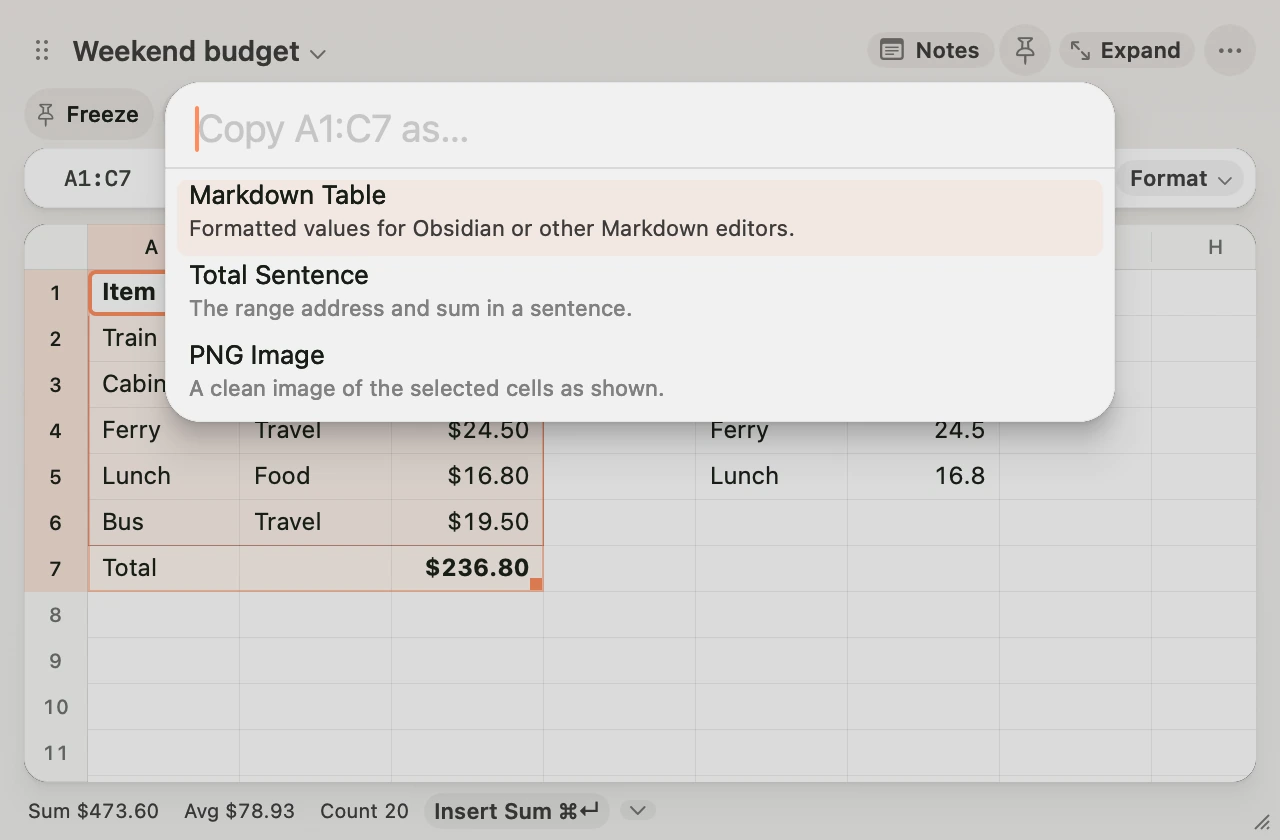
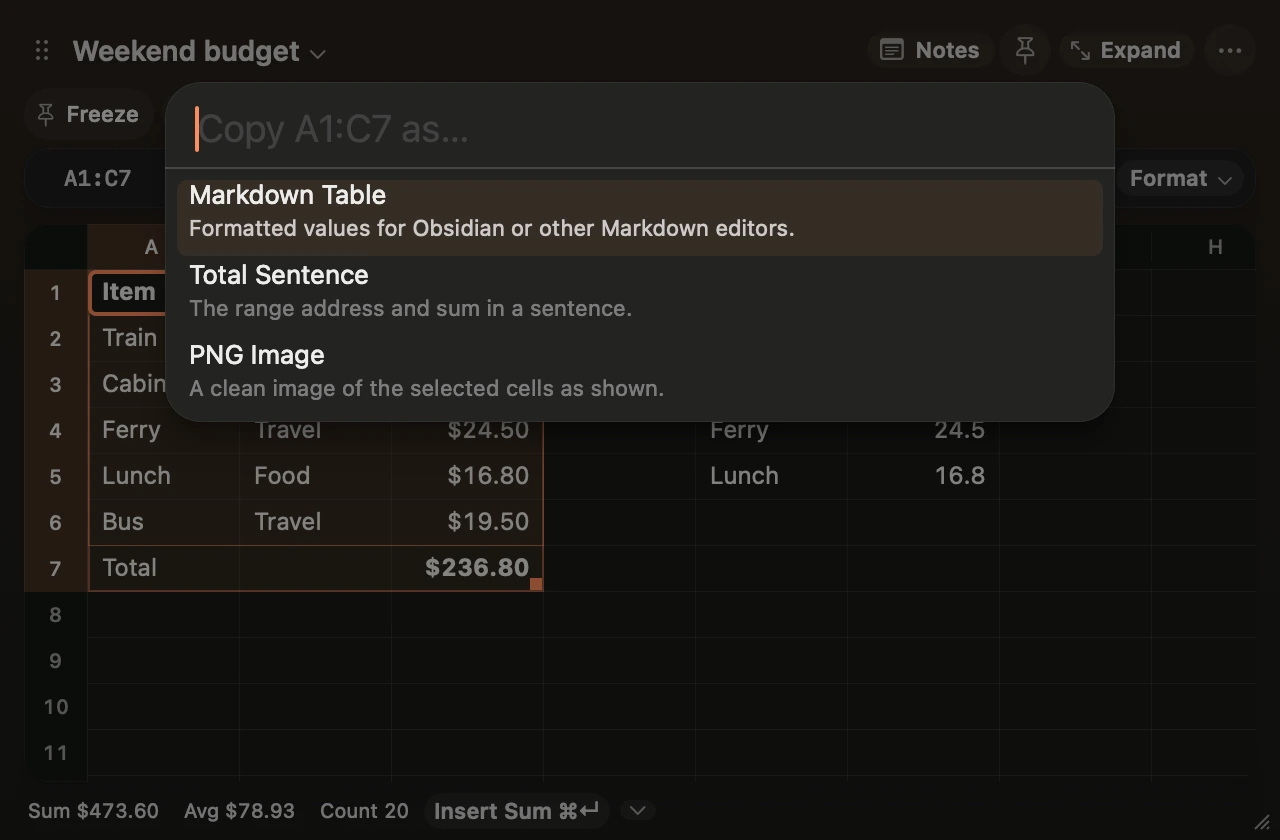
Select one rectangle, then choose Export → Copy Selection As, or find Copy Selection As in the command palette. Choose a format and paste it into the destination app.
- Markdown Table copies up to 100,000 cells with formatted values and calculated results. Paste it into Obsidian or another Markdown editor.
- Total Sentence copies the range address and sum, such as
B2:B6 totals $236.80.Select the input cells you want to add. - PNG Image copies the selected grid cells at 2×, including their formatting. Hidden rows and columns follow the grid view. The image is limited to 4,096 pixels on each side and eight million pixels overall.
Workbooks and sheet archive
Open the sheet menu and choose Workbooks → New Workbook or Open Workbook. Each .scratchbook file keeps its own sheets, formulas and Notes. Scratch saves the current workbook before switching and reopens the last file at launch. Choose Open Default Workbook to return to the original workbook.
Use Archive Current Sheet to remove it from the sheet picker while keeping it available to formulas and links. The sheet menu lists archived sheets under Restore Archived Sheet. Keep at least one sheet visible.
TSV and Excel files
Use Export Sheet as TSV or Export Selection as TSV for tab-separated values. Use Import CSV or TSV to bring the file back into a new sheet.
Choose Export Workbook Values to Excel for an .xlsx file containing the sheets and their calculated values. Import Excel Values adds the file’s worksheets to the current workbook. Import reads the results Excel saved for formula cells. If a formula has no saved result, recalculate and save it in the spreadsheet app before importing. Scratch workbook files keep editable formulas, formatting and Notes. Excel exchange carries values. A file can include up to 32 sheets, and each sheet must fit within 2,000 rows and 96 columns.
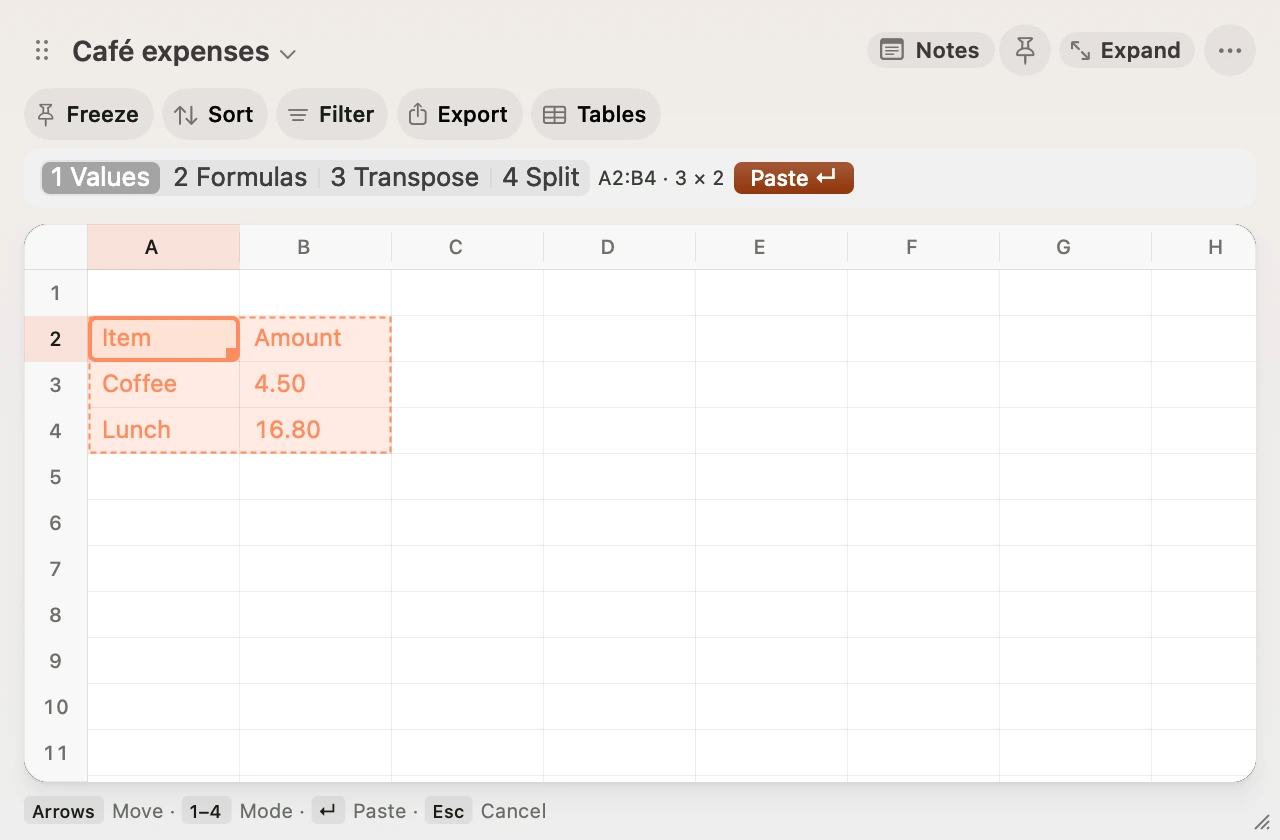
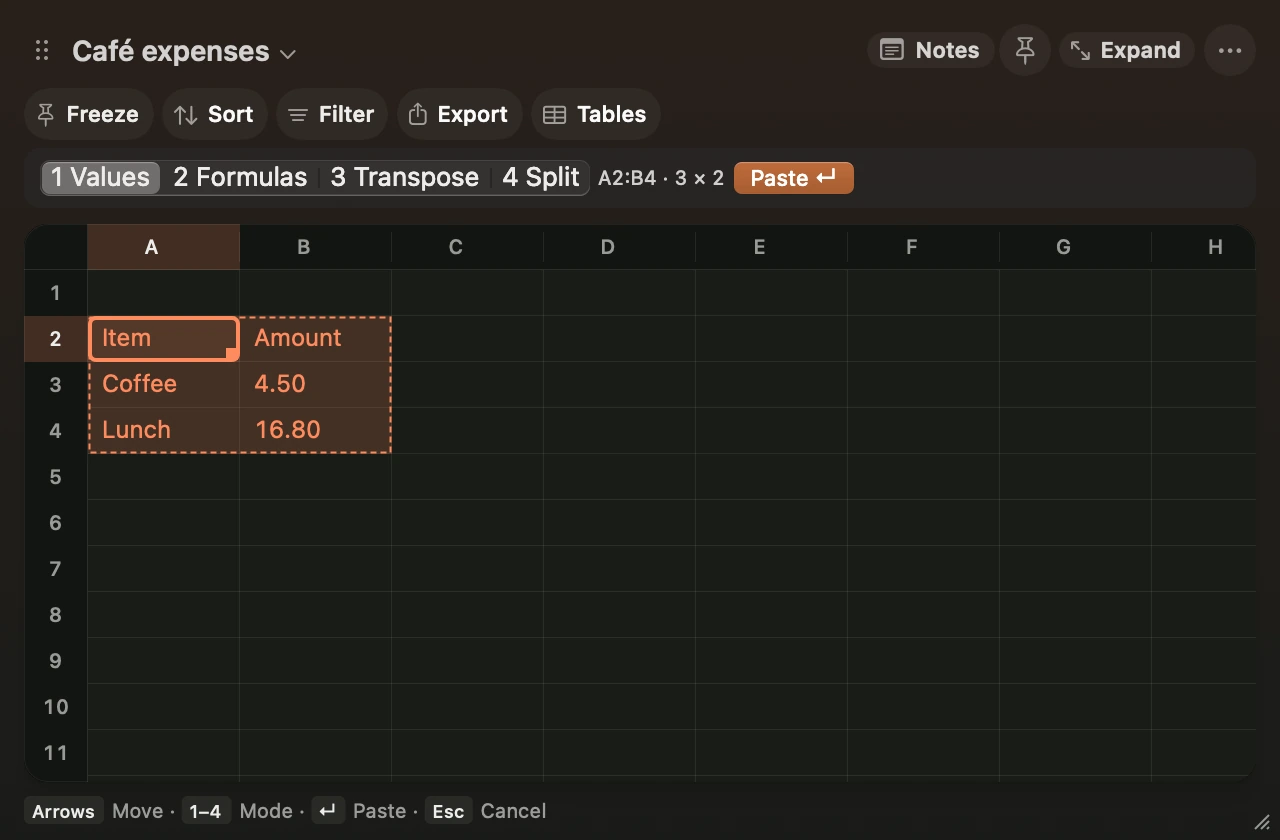
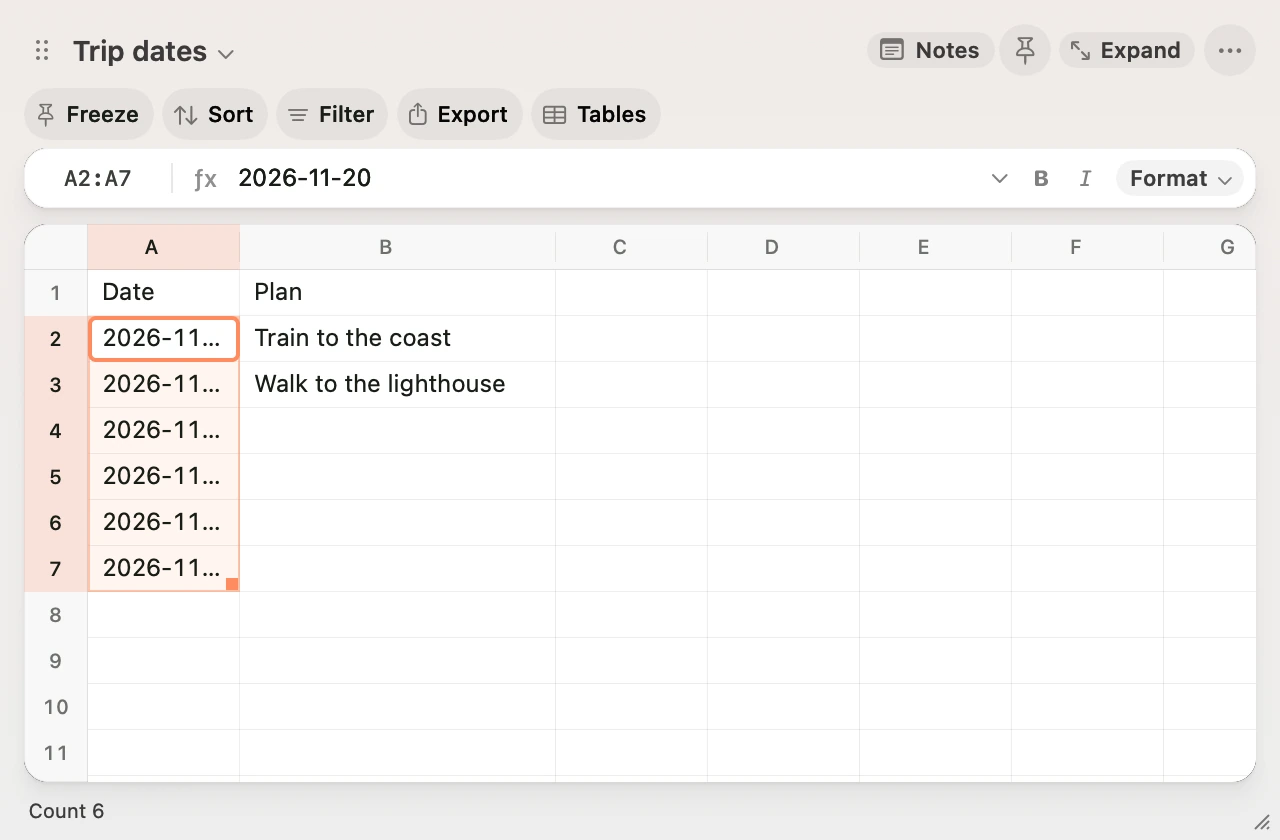
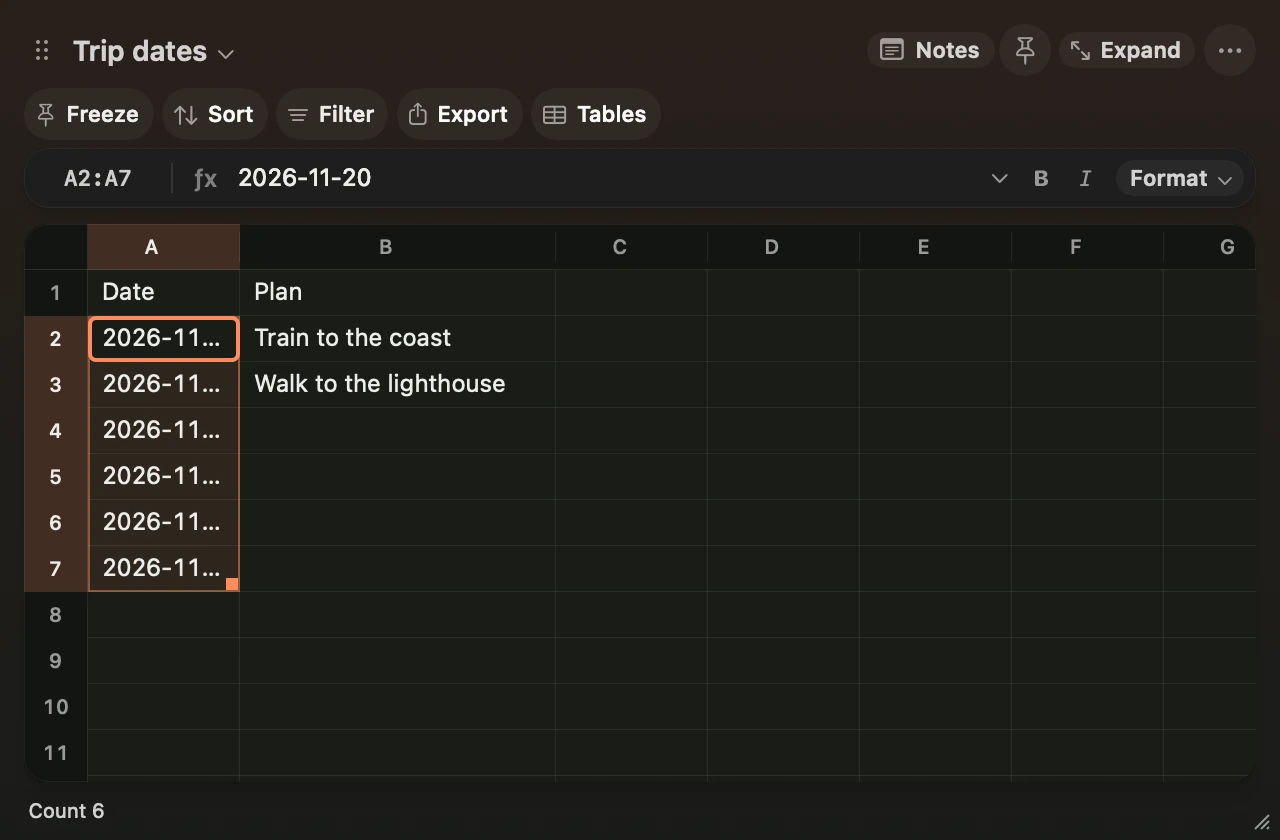
Preview paste and fill
See how a paste will land before applying it. Drag the fill handle to extend a series of dates. Capture and paste.
Format a range
Hover near a column divider to see its grip and resize cursor. Drag it to resize the column or double-click to fit the contents. Wrap grows the row. Press ⌥Return in a wrapped cell to insert a line break.
Choose Zoom In Sheet, Zoom Out Sheet or Reset Sheet Zoom from the command palette. Zoom scales the grid text, rows, columns and grid controls. Scratch remembers the zoom for each sheet.
Use the Format menu for currencies, dates, decimals and text. ⌥⌘1 through ⌥⌘6 apply number, currency, percent, date, text and wrap. Use ⌘B or ⌘I to toggle bold or italic. SUM, SUMIF and SUMIFS results start in bold. Toggle bold off for a particular total, or use Clear Formatting to return to the default.
Point to a format in the menu or use the arrow keys to preview it on the selected cells. Choose the item to apply it, or press Escape to restore the original appearance. Wrap grows the row when applied. The command palette also opens the menu through Browse Cell Formats.
Calculate and copy
Type =SUM( in a cell or in the formula bar, then drag across the cells to enter a range. Hold at the grid edge to reach cells beyond the visible area. Click a single cell to enter its address. Type a comma to pick another range, or press Return to finish the formula.
Click the chevron beside the formula bar or press ⌥⌘E to expand it. Long expressions wrap, and underlined references match the outlines in the grid. The current argument and matching parentheses highlight as you move the caret. Press ⌥⌘E again to collapse the bar and keep editing at the same position. Return commits the edit and Escape cancels it.
Click ƒx on a formula cell to see the intermediate results and jump to its references. Formula Microscope.
Open Command Palette from the ⋯ menu or press its shortcut (⇧⌘P by default). Type a cell address to jump to it, or try 12 kg to lb to copy a unit conversion. Currency formatting sets how a value is displayed. It does not fetch exchange rates. Keyboard Shortcuts.
Convert currency
Type 100 AUD to USD in the command palette. Choose Fetch ECB Rates the first time. Scratch shows the converted amount, exchange rate, ECB publication date and the time Scratch fetched it. Choose Copy to put the converted number on the clipboard.
Saved rates work offline. After one hour, or after a failed refresh, the palette labels the rate Saved. Choose Refresh ECB Rates to check for a newer snapshot. A copied number stays fixed when rates change. ECB reference rates.
Select numbers and press ⌘Return to insert the suggested calculation. Press ⇧⌘C to copy the selected result or sum. Pin Result keeps the active cell’s formatted value in a small window above other apps. It updates when the source changes and lasts until Scratch quits.
Drag Sum or Avg from the footer to a visible empty cell. The outline and label show the destination and formula. Hold Option to drop the current value. Press Escape to cancel or ⌘Z to undo a drop. Clicking a footer result copies it.
From the keyboard, choose Place Selection Sum in Cell or Place Selection Average in Cell in the command palette. Type an empty destination address, then press Return for a formula or ⌥Return for a fixed value. Choose a cell outside the source range for a live formula.
To extend a value, series or formula, drag the small square at the selection’s bottom-right corner. The grid scrolls if you hold the pointer at the edge. Release to apply the preview, or press Escape to cancel.
Each sheet has 2,000 rows and 96 columns. Undo history lasts for the app session.
Use Show Selection History to compare and restore older cell entries and formats after a restart. Selection History.
Use Start Recording to save a sequence of fill, format and clear commands for another range. Record and Replay.
Work across sheets
Use a sheet name and ! to refer to cells in the same workbook. Put single quotes around names with spaces and double any apostrophe inside the name. For example, =SUM('Rate Card'!B2:B12) adds a column from another sheet. References follow a renamed sheet or moved source cells. A circular chain across sheets shows #CIRC!.
Use =SUM(RANGE("Daily total")) to read a saved range on the current sheet. A name such as Daily_Total can also be typed directly as =SUM(Daily_Total).
=XLOOKUP(A2,Prices!A2:A50,Prices!B2:B50,"Unknown item")returns the first exact match. Use a single row or column for each range, with matching sizes. Without a fallback, a missing key shows#N/A.=DAYS("2026-11-12","2026-11-01")returns 11.DATEVALUEturns a date written as YYYY-MM-DD into a spreadsheet date number. Apply the Date format to display it as a date.TRIMremoves extra whitespace,LENcounts characters, andLOWERandUPPERchange case.
Check inputs as you edit
Select a range and choose Check for Numbers, Check for Positive Numbers, or Check for Duplicates in the command palette. Apply more than one check to the same range if needed. Blank cells are allowed. Duplicate text matches regardless of case or spaces at the start or end.
An orange marker shows which cells need attention. Select a marked cell to see what to fix beside it. Formula errors such as division by zero are checked automatically. Use Inspect Formula to follow a formula error to its source. Formula Microscope.
Use Manage Input Checks to remove a rule. Undo restores the rule or a recent edit.