Guides
Capture and paste
Copy amounts or an image in another app and press ⌥⇧ Space with Scratch running. Scratch opens a new sheet for the capture.
Capture amounts
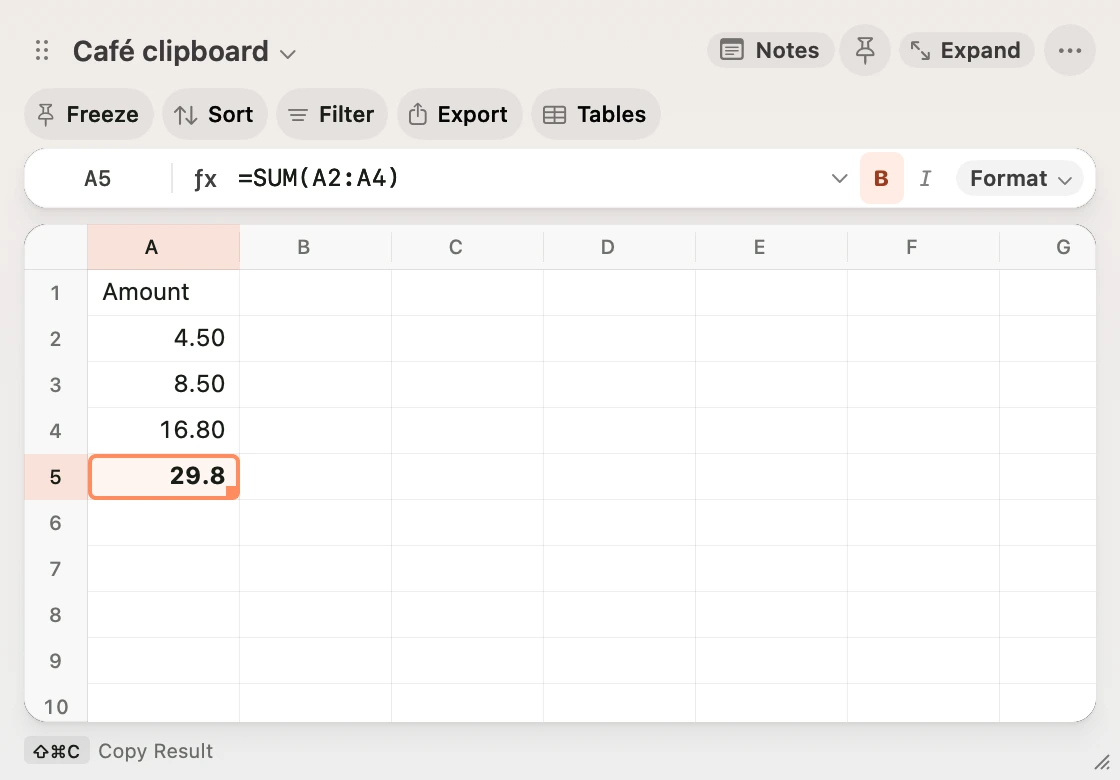
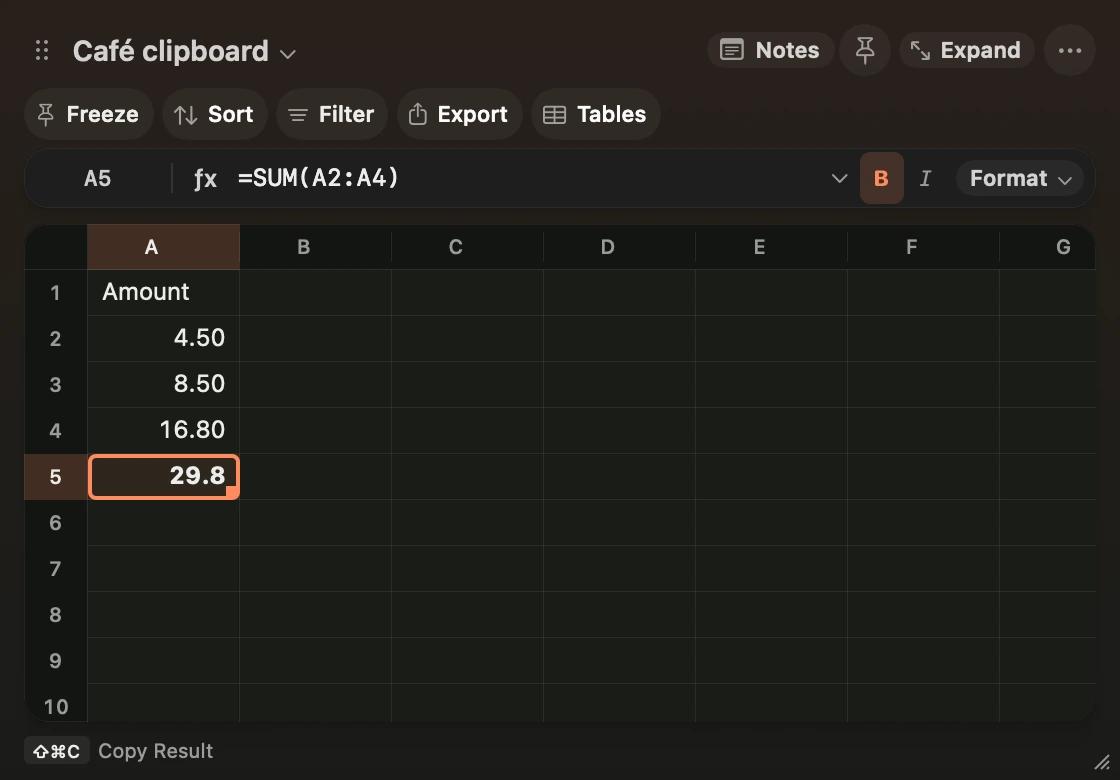
Copy a column of numbers or lines such as Lunch $12.50. The new sheet includes a live total. Press ⇧⌘C to copy the total or ⇧⌘J to send the table and notes to Obsidian.
Read a screenshot
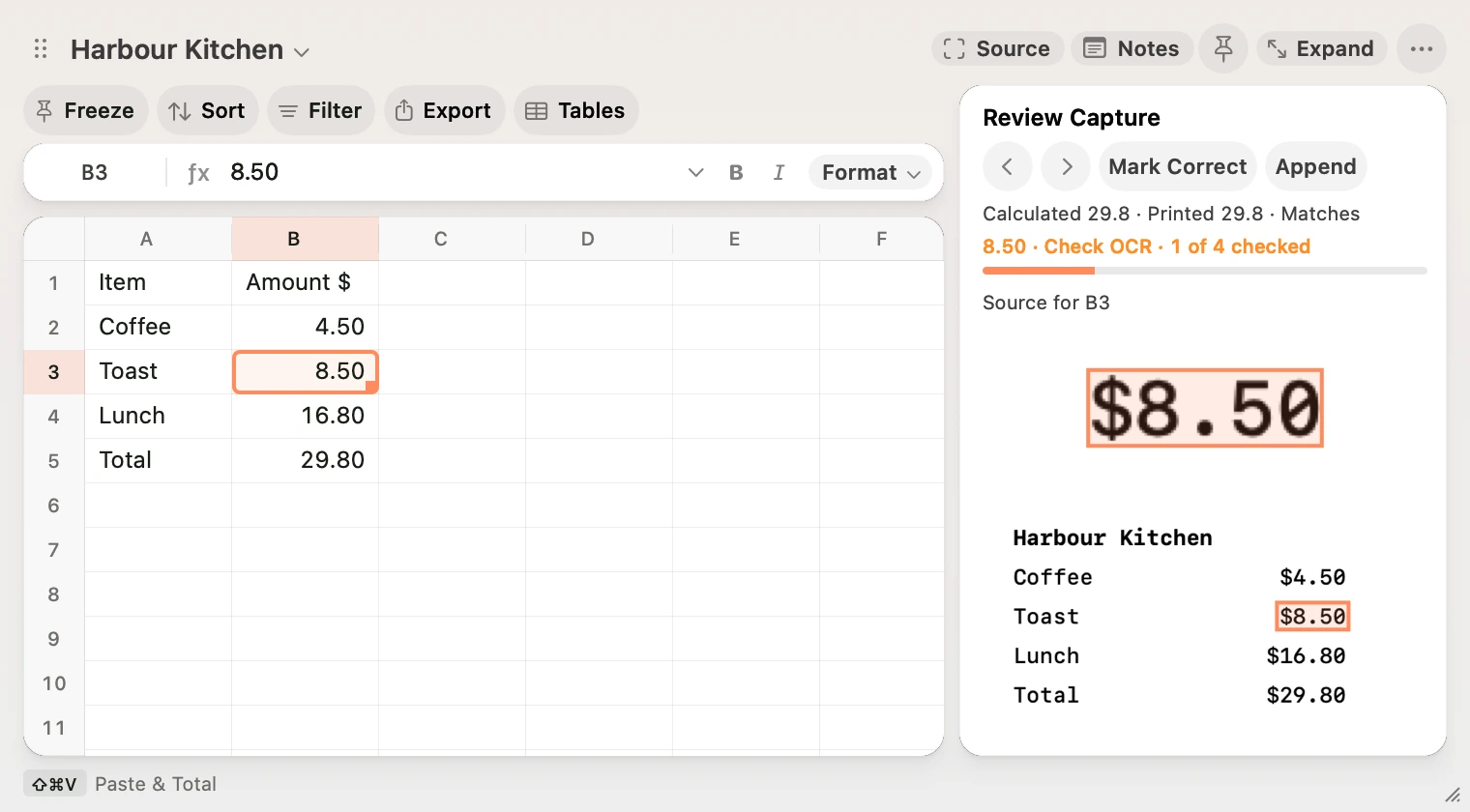
Use ⌃⇧⌘4 to copy a region of the screen. Press ⌥⇧ Space or paste the image with ⌘V in Scratch. Apple Vision reads the screenshot on your Mac. Scratch uses the rightmost amount it recognises in each row. Crop to the amount column if the screenshot has several.
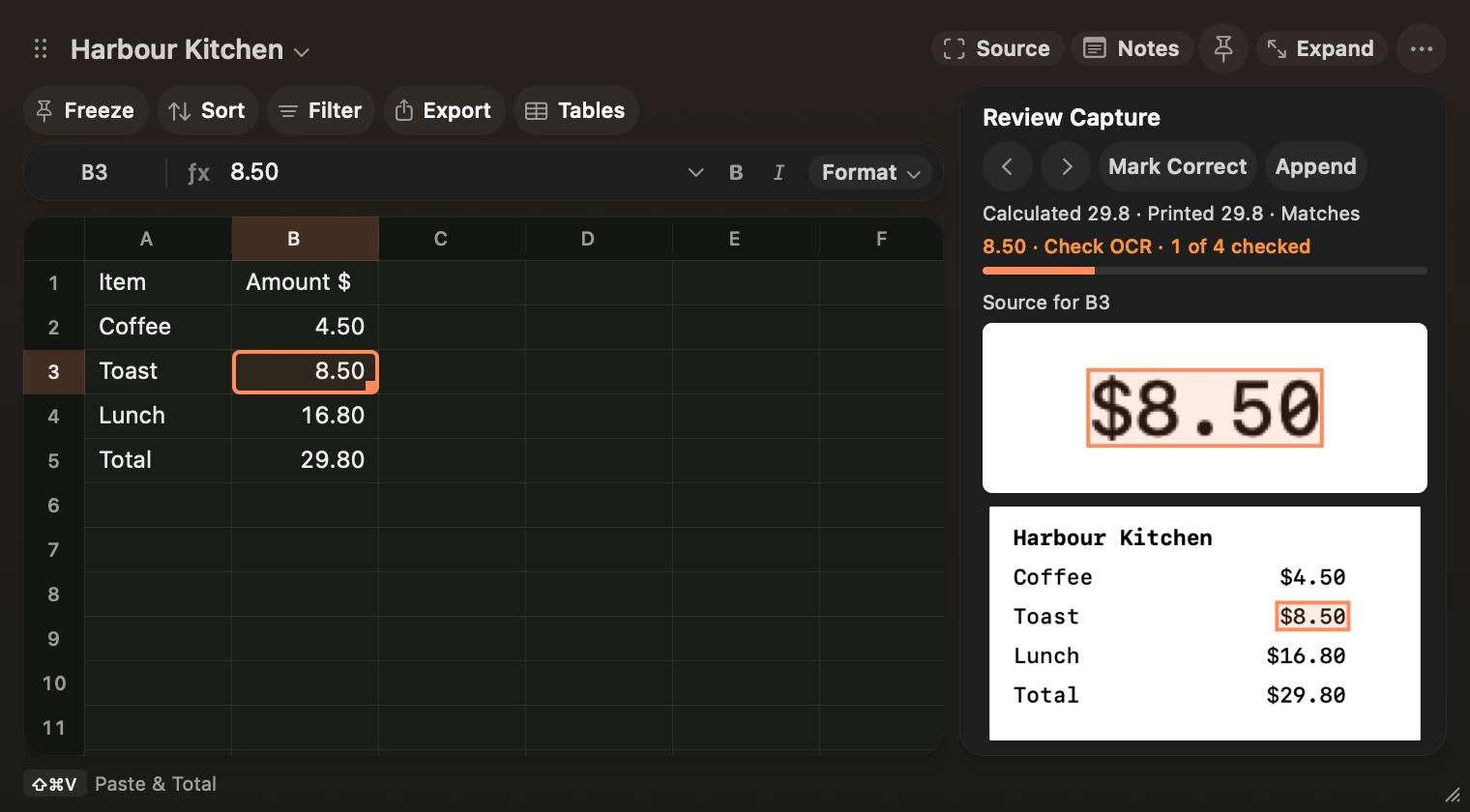
Select a row to inspect its amount beside its source crop in Review Capture. Press ⌘U to toggle the pane. Use the left and right chevrons to visit uncertain rows first, then the remaining unchecked rows. Correct any amount in the grid, then click Mark Correct. Editing a reviewed row puts it back in review.
Scratch shows the sum of the detail rows and compares it with a recognised printed total. The pane shows the difference when they disagree. Mixed currencies and invalid amounts leave the calculated total unavailable. The source image and review marks are saved with the workbook.
Click Append, choose another sheet, then enter the destination columns in item and amount order, with a currency column if the capture has one. For example, enter B, D to put items in B and amounts in D. Scratch previews the range below the last populated row in those columns and remembers the mapping for that sheet. Only reviewed detail rows append. The source capture remains available, and ⌘Z undoes the append as one edit.
Choose how to paste
Open Command Palette from the ⋯ menu or press its shortcut (⇧⌘P by default). Paste Values copies the displayed values into the destination. Paste Formulas Only and Paste Formatting Only use cells copied in Scratch.
Choose Preview Paste to inspect the destination and dimensions in the bar above the grid. The preview leaves the grid in place. Cells that will be replaced are highlighted. Click another cell or use the arrows to move the preview. Choose Values, Formulas, Transpose or Split, or press 1 through 4. In Split, choose a separator or press S to cycle through them. Values and Split preserve leading zeros. Return or Paste applies the preview and Escape cancels it.
Choose Preview Paste CSV, Preview Paste TSV or Preview Paste Semicolon to inspect a destination before writing. Press T to treat fields as text, D to interpret decimal commas, Return to paste or Escape to cancel. Use text mode for IDs with leading zeros.
Fill a series
Select the starting cells and drag the small square at the bottom right of the selection. You can also choose a Preview Fill command and extend with the arrows before pressing Return. Scratch extends regular number, date and weekday series and shifts relative references when filling formulas.