Guides
Notes and Obsidian
Click Notes to show or hide the current sheet’s notes. The default shortcuts are ⌘J to show or hide Notes and ⌥⌘J to switch focus between Notes and the grid. Change the shortcuts.
Move Notes
Drag the Notes header grip to the left, right, top or bottom edge of the grid window. Drop it outside to put Notes in its own window. Drag the grip back to a highlighted edge to dock. Click the grip for the same options without dragging. The floating editor follows the current sheet and keeps its window position when you hide and show it. Move or detach panes.
Resize Notes
Drag the dotted divider to change how much room each pane gets. Double-click to reset it or press Escape during a drag to cancel. The palette offers Widen Notes, Narrow Notes and Reset Notes Width at the sides. At the top or bottom, use Taller Notes, Shorter Notes and Reset Notes Height. Resize floating Notes from its window edge.
Scratch remembers a size for each dock across sheets and launches. When the window is short or narrow, Scratch can temporarily shrink Notes to leave room for the grid. Widen or grow the window to get that space back.
Hide Notes and reopen it on the same sheet to continue from the same selection and reading position. The docked pane reveals from the divider when motion is enabled.
Format a note
Use the toolbar for headings, bold, italic, lists, checklists and inline code. Click a checkbox to mark it done. ⌘B and ⌘I also work in the notes editor. Scratch shows headings, emphasis, bullets and checkboxes while saving the Markdown source. Move the caret into a list line to edit its markers directly. Use Show Notes Markdown Source in the command palette to edit the markers, then Show Formatted Notes to switch back.
Annotate a cell or range
With Notes open, select plain text and Option-drag from inside the selection to a grid cell. Drop inside the current grid selection to annotate that range. Scratch links the selected text to the annotation and confirms the cell address. Click the underlined text in Notes or open the annotation in the grid. Both open the same editor, and edits appear in both places. Use ⌘Z from the grid to undo the link and restore the original note text.
Select a cell or range and choose Annotate Selection in the command palette. Start typing as soon as the editor opens. Write up to 2,000 characters and click Save or press ⌘Return. A marker appears at the top left of the first cell.
Click the marker or select its cell and click Annotation in the grid footer. The Annotations button at the bottom of Notes lists the sheet’s annotations. Use Find Annotations in the command palette to search by address or text. Annotations are saved with the workbook, and Undo can restore a deleted annotation.
To link an annotation you made before this update, select its matching text in Notes and Option-drag it onto the same cell or range.
Put a live result in a note
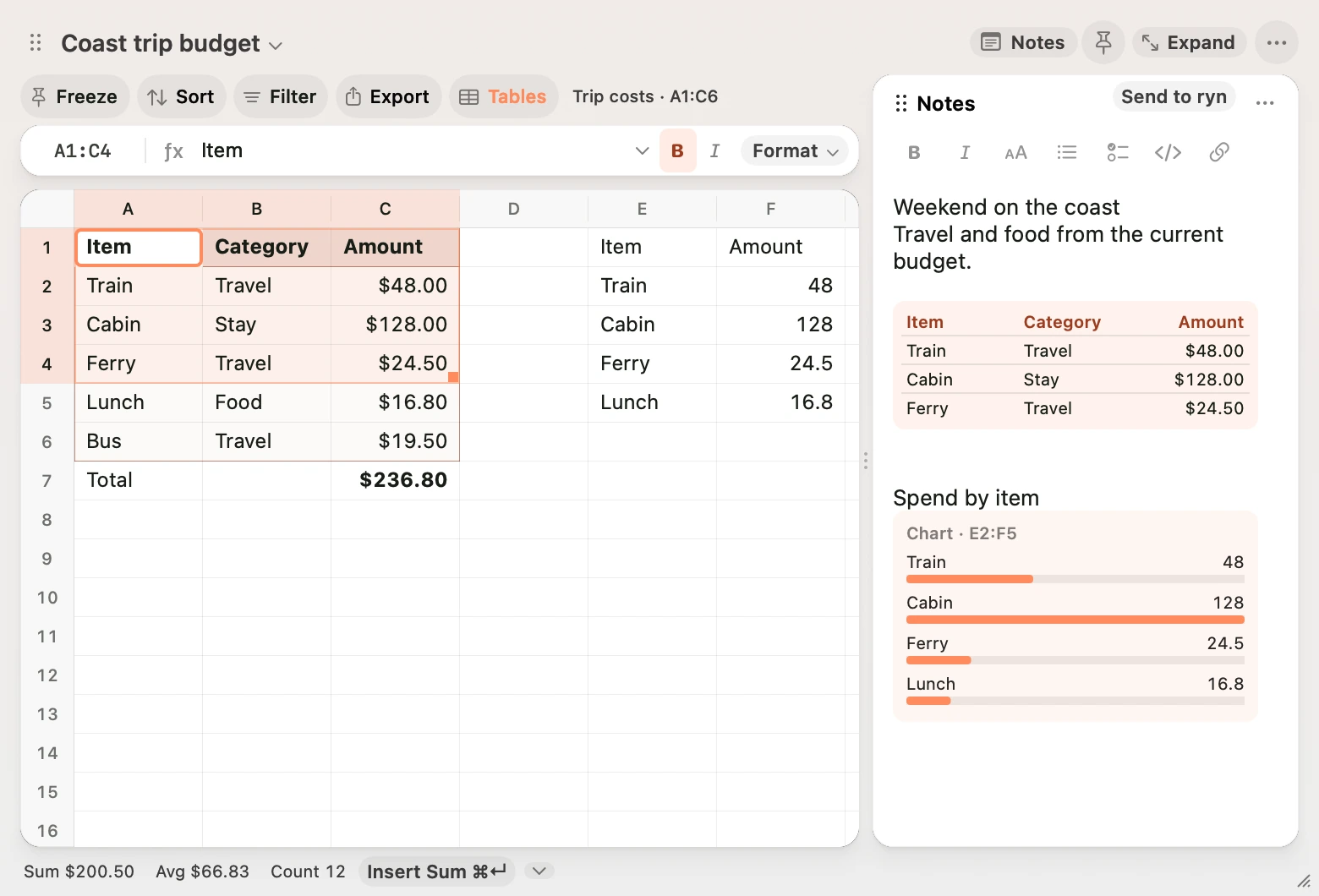
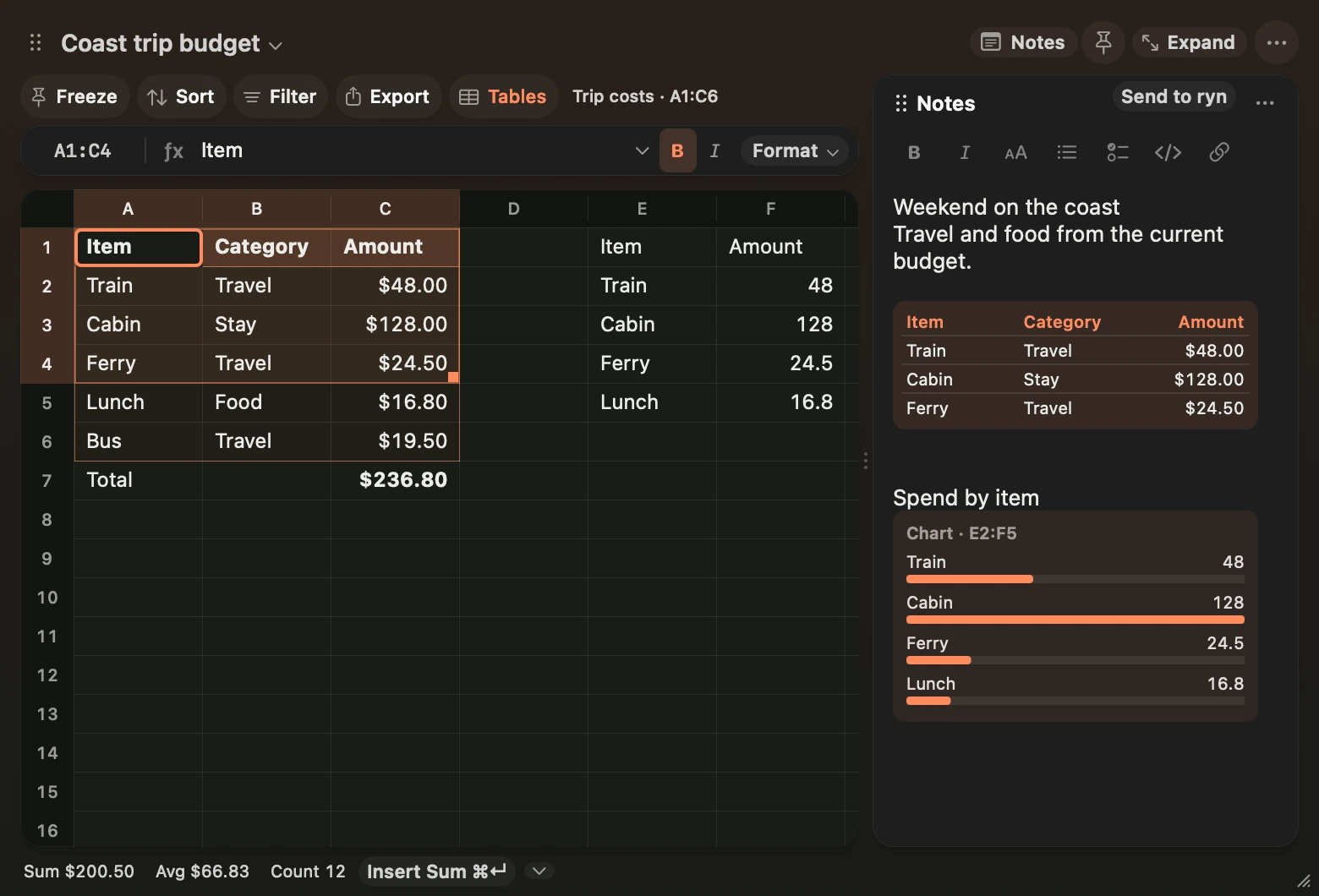
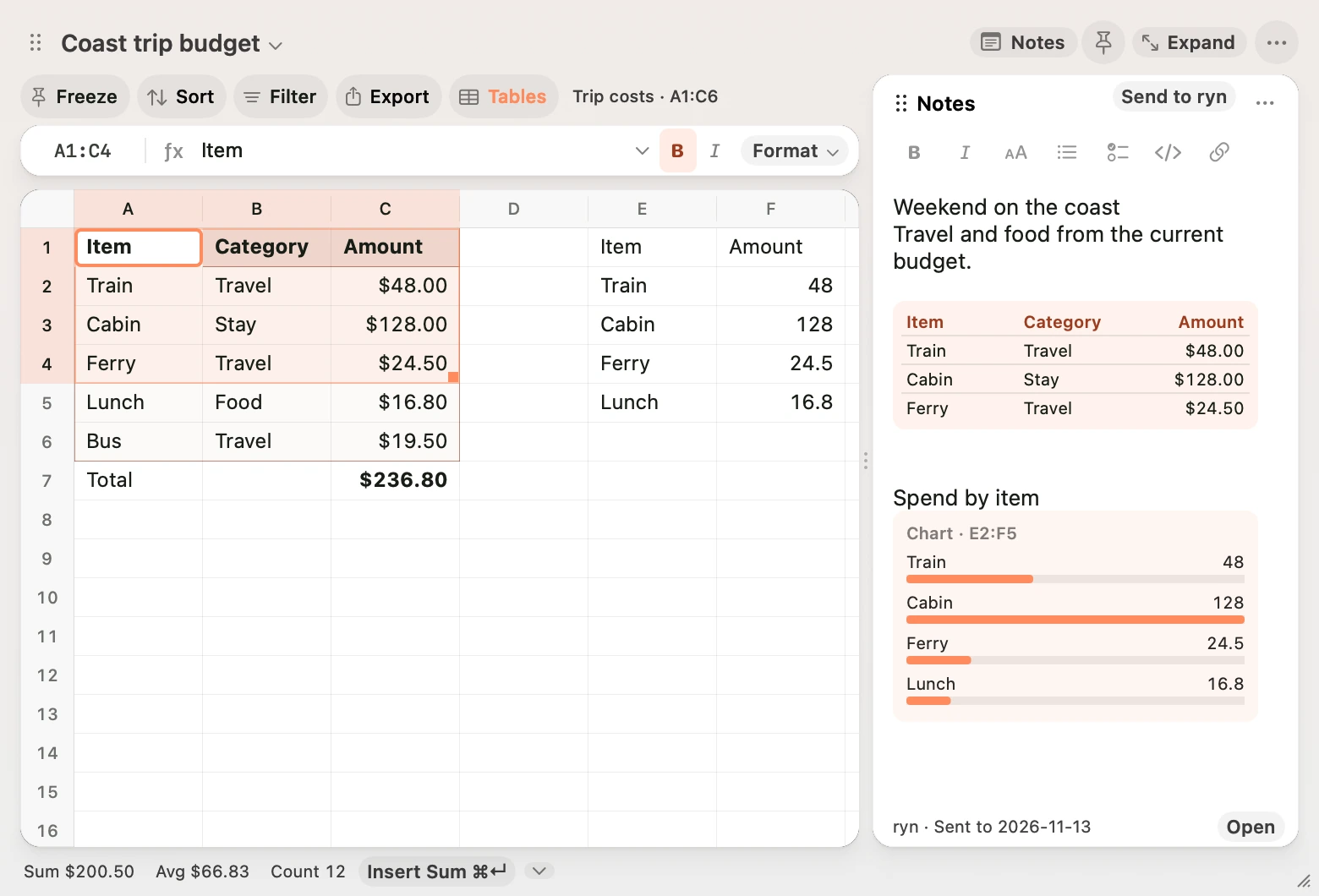
Select a range and Option-drag from inside it into Notes. The insertion marker shows where the live table will land. Add Shift for a live chart or Command for a range link. The label beside the pointer identifies the item before you drop it. Press Escape to cancel or ⌘Z in Notes to undo the insertion.
Select a cell and press ⌥⌘L to insert its live value. Hover over the value to see its sheet, address, displayed result and formula. Click it or press ⌥Return on the selected note link to go to the source. Press ⌃⌘← or choose Back to Note to restore the note selection and scroll position.
The command palette also inserts cell and range links, live tables, bar charts, and fixed value snapshots. Pick a source sheet and address to link across sheets. Find Notes Referencing Selection finds links in the current sheet’s notes.
A live table previews up to six rows and four columns. Copy or send the note for the full table. A chart accepts one row or up to two columns and previews up to eight positions. Click a bar to open its source cell. Markdown exports include the chart’s source data as a table.
Repair a note link
Scratch saves a stable reference for each live note link. Renaming a sheet and editing its values preserve the link. If you delete the source sheet, use Restore Deleted Sheet to recover it and reconnect the link.
To point a link to a different range on the sheet that contains the note, select the new range and choose Relink Note Source. Choose the link to update. Use Undo in Notes to restore its previous target.
Send the table and notes
Use Send to ryn or its shortcut (⇧⌘J by default). Scratch saves a dated copy under Scratch/Sheets and appends the table and notes to today’s daily note. Hover over Send to ryn to see the vault, delivery mode and included cells before you send. Once Obsidian confirms the delivery, the pane keeps the note name and an Open button. Use Open Saved Sheet in Obsidian in the Notes menu to open the dated copy. Sending the same sheet again updates its saved copy and leaves one daily note entry when the content is identical.
Choose Send Selection and Notes in the palette to append just that range and its notes to the daily note. Choose Save Sheet to Obsidian to update just the saved sheet copy.
The handoff uses the Obsidian command line and the configured vault’s Daily Notes settings. The local preview targets the ryn vault by default. Set up the Obsidian CLI.
Save a dated sheet note
Open Scratch → Sheets in Obsidian’s file explorer. Each saved sheet has its own named note with the table, notes and save date. Add your own Obsidian content outside Scratch’s generated section so it survives a resave.
The first save creates Scratch Sheets.base. Open it from the command palette to find saved sheets by name and date. The table and linked values are snapshots at export time. To refresh them, save the sheet again from Scratch. A saved note uses the sheet’s current sort order and includes rows hidden by a filter.
Use Copy Markdown or Save Markdown File in the notes menu to take the same notes elsewhere.
Edit a table in both Scratch and Obsidian
Yes, Obsidian edits can come back to Scratch. Edit the note under Scratch/Editable Tables, then run Sync Editable Table with Obsidian again. Sync runs on demand for the current sheet. Dated copies under Scratch/Sheets and entries in your daily note are snapshots.
In Scratch, choose Sync Editable Table with Obsidian from the command palette or the Notes menu. The first sync creates a separate note under Scratch/Editable Tables in your configured vault. Use Open Editable Table in Obsidian to open it again.
Edit the cells in either app, then run Sync Editable Table with Obsidian again. Scratch combines edits to different cells. If both apps changed the same cell to different values, Scratch shows the Scratch and Obsidian values side by side. Click an address to jump there, choose a value for each cell, then click Apply and Sync. If either value changes before you apply, Scratch shows the updated conflict. Use Review Obsidian Changes in the Notes menu or command palette to reopen the review. You can undo a pull in Scratch with ⌘Z.
Use Obsidian’s Live Preview to edit the rendered table or Reading view to read it. If an older synced note shows Markdown pipes, run Sync Editable Table with Obsidian again to refresh its layout in place. In Source mode, Obsidian shows the raw Markdown. Keep the Editable table heading and Open in Scratch link so Scratch can find the table on the next sync. Install the Power Tables community plugin to recalculate compatible formulas in Obsidian. The first row is row 1 in both apps. Keep the table’s row and column count fixed when editing in Obsidian. To extend it, add cells at the right or bottom in Scratch and sync. The editable table can use up to 64 KB of Markdown. Formulas with complex quoting and Power Tables cell styles can stop a sync until you simplify those cells.
The command syncs cell values and formulas on demand. Sort in Scratch and sync to send the new row order. Sync compares cells by address, so sync any Obsidian edits before sorting to reduce conflicts. Use Save Sheet to Obsidian or Send to ryn to include your Scratch Notes in a dated copy. You can write in the editable note above or below the table.
Open an export in Scratch
Click Open in Scratch in an exported note to return to its source. A sheet export opens the sheet. A selection sent to the daily note opens the selected range. Open the Scratch app once so macOS can recognise its links, and use the workbook that contains the original sheet.
Search your Obsidian vault
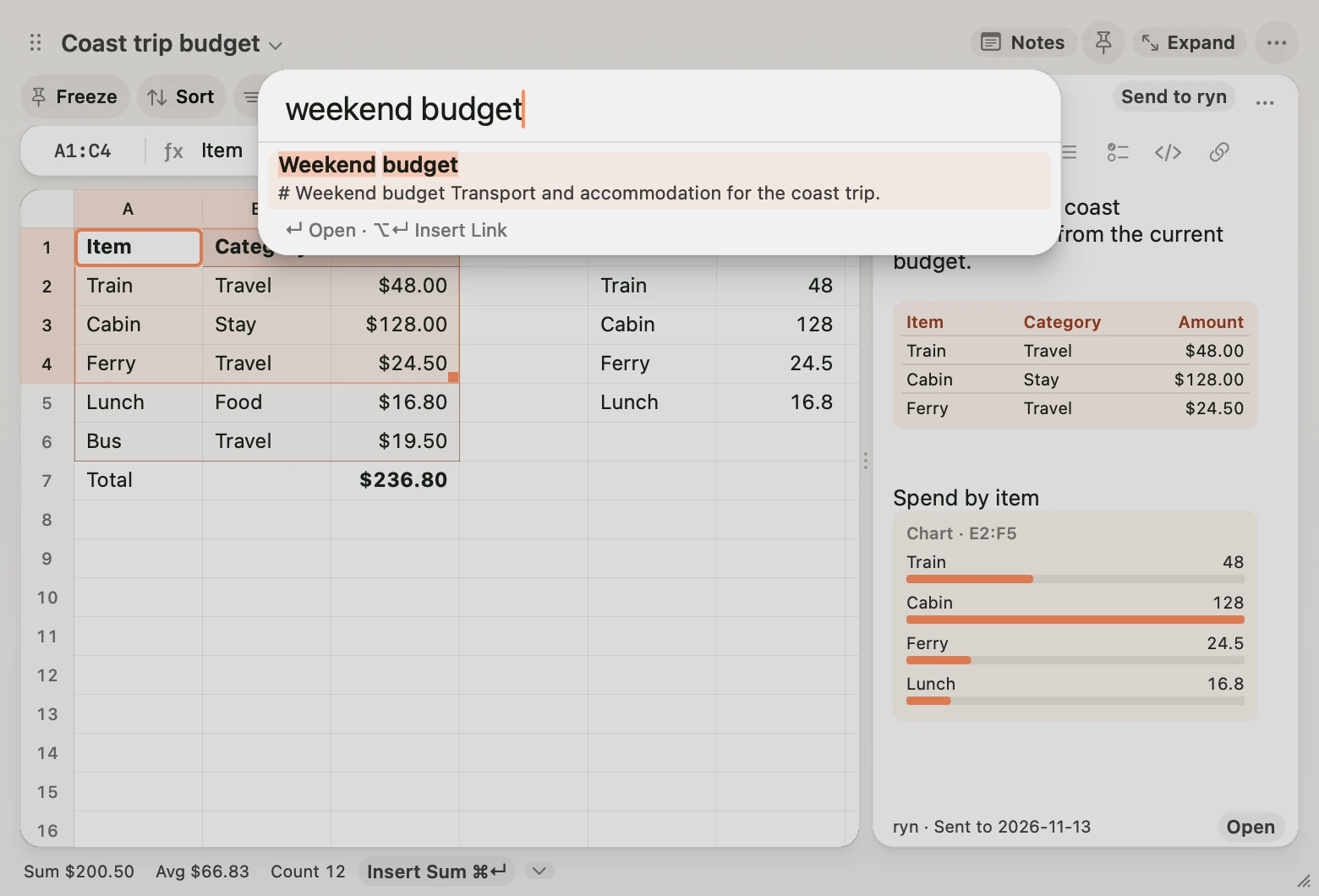
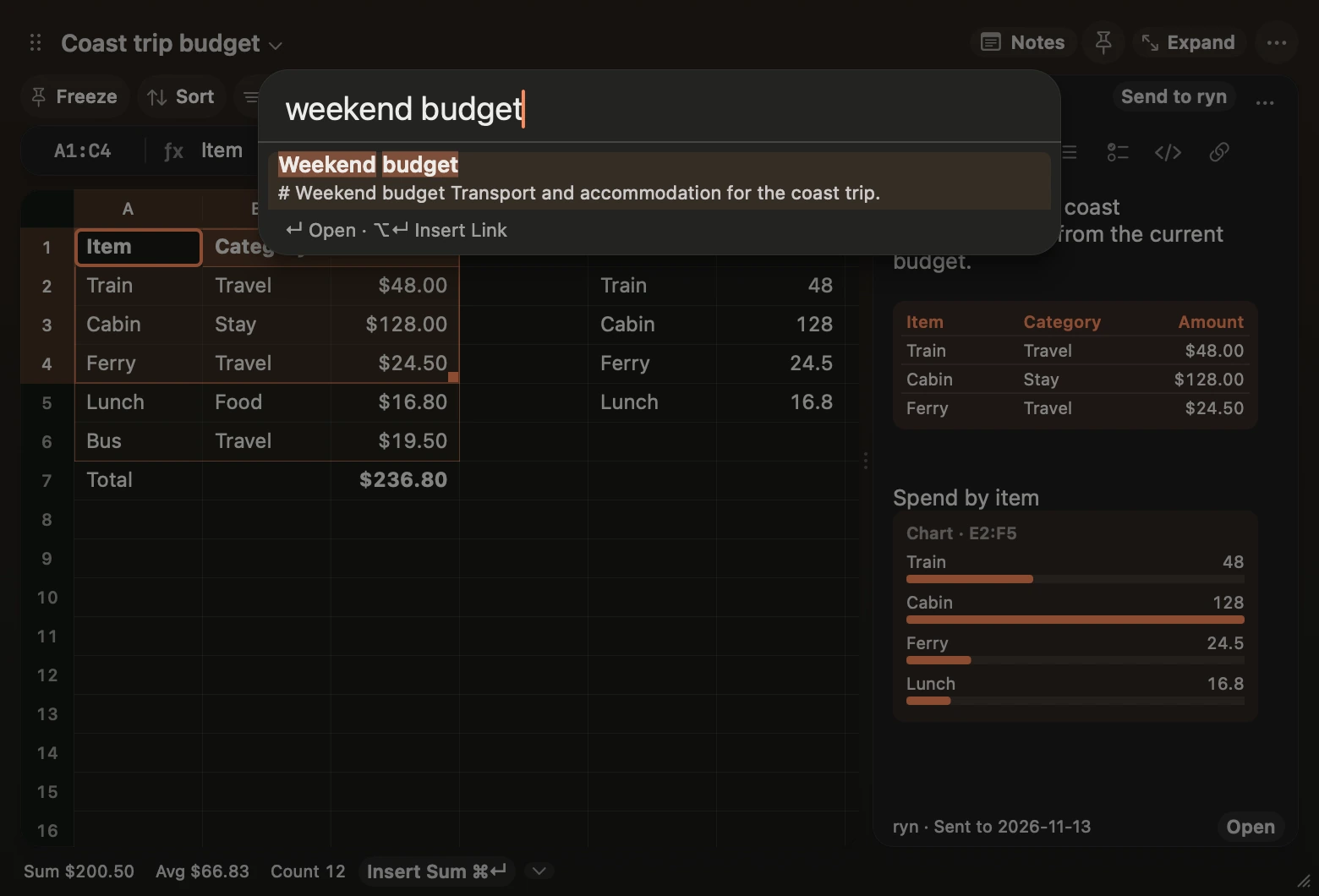
Choose Search Obsidian Vault in the command palette, then type at least two characters from a note’s title or text. Results show a matching snippet and the folder, which helps when two notes have the same title. Press Return to open the result in Obsidian or ⌥Return to insert its link into Scratch Notes.
The first search builds a local index in memory. Scratch refreshes it when vault files change. Search covers the first 128 KiB of each Markdown note and shows up to 20 matches. If the vault is unavailable, open it in Obsidian and choose Retry Vault Lookup.