Guides
Formula Microscope
Select a formula cell and click ƒx in the formula bar. You can also choose Inspect Formula from the command palette.
Read a calculation
Enter 3 in A1 and 5 in A2. Enter =SUM(A1:A2)*2 in B1 and inspect it. The microscope shows 16 for the result, 8 for the sum and 2 for the multiplier. Click A1:A2 to select that range in the grid.
An IF formula shows which branch ran. Parts Scratch didn’t evaluate are marked Not evaluated. A range shows how many cells it covers. Press Escape to close the microscope and keep the grid open.
Named ranges resolve to the cells they cover. For a cross-sheet reference, the microscope shows the sheet and address in the expression. Jump links are available for references on the current sheet. Work across sheets.
Find a cell behind an error
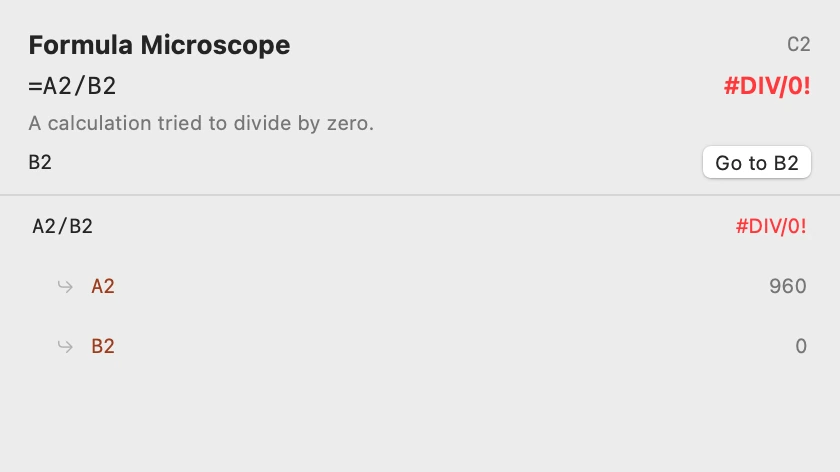
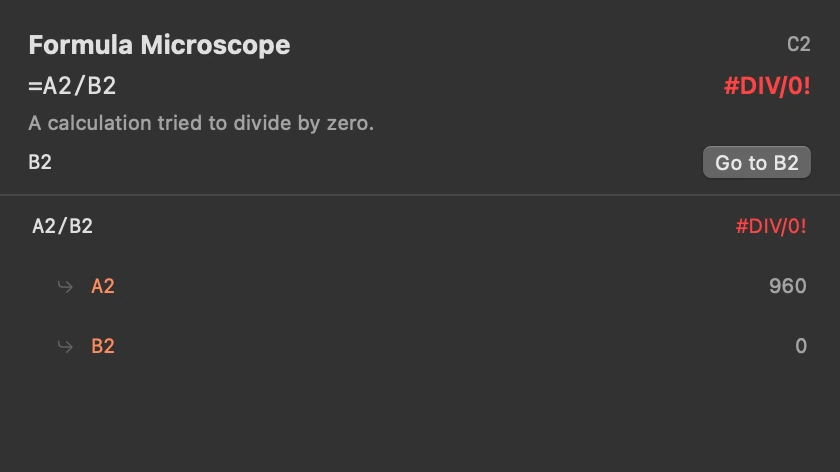
Set A1 to 0, B1 to =12/A1 and C1 to =B1+1. Inspect C1 to see the path through B1 to A1. Choose Go to A1 to jump to the zero divisor. For an error inside the formula itself, such as =1/0, the microscope shows the failing step. A formula Scratch cannot parse shows the error above the expression.
Match formula references to the grid
Expand the formula bar to see each reference in a different colour. The same colour outlines its cells in the grid. Repeated references to the same range share a colour.
See where a pinned result came from
Select a result and choose Pin Result in the command palette. Click the chevron beside Go to Cell on the floating card to show the formula, intermediate results and links to its inputs. When a source row came from a screenshot, View Screenshot Source opens that row and its image in Scratch. Click the chevron again to return to the number.