Start
Getting started
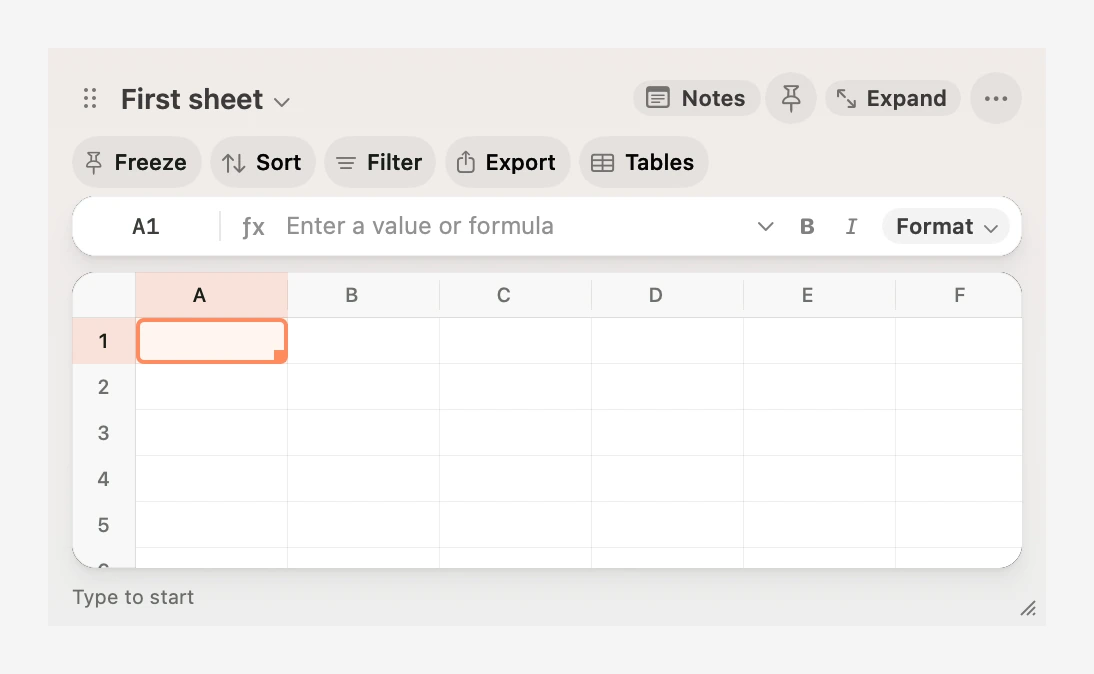
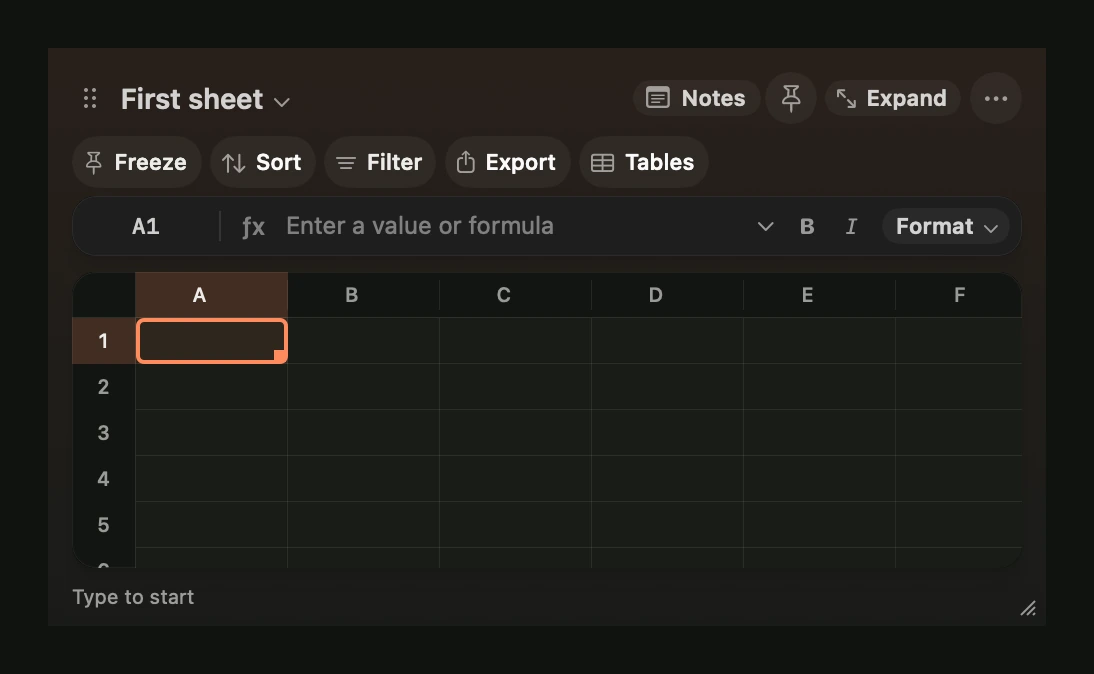
Scratch is a floating spreadsheet for macOS. Its menu bar icon and global shortcut bring up the same workbook from any app.
Open Scratch
Scratch is in local preview. If you have a copy of the source, run make run from its folder. The build needs macOS 14 or later and Swift 6.
Click Scratch’s menu bar icon or press ⌥ Space. Press Escape on the grid to dismiss it. Open it again to resume at the same selection. The pin beside Notes keeps the grid visible when you switch apps.
On an empty sheet, look at the lower left for a first-run hint. Start typing to edit the selected cell. The hints for typing, opening the command palette and hiding Scratch each retire after you use the action.
Add five numbers
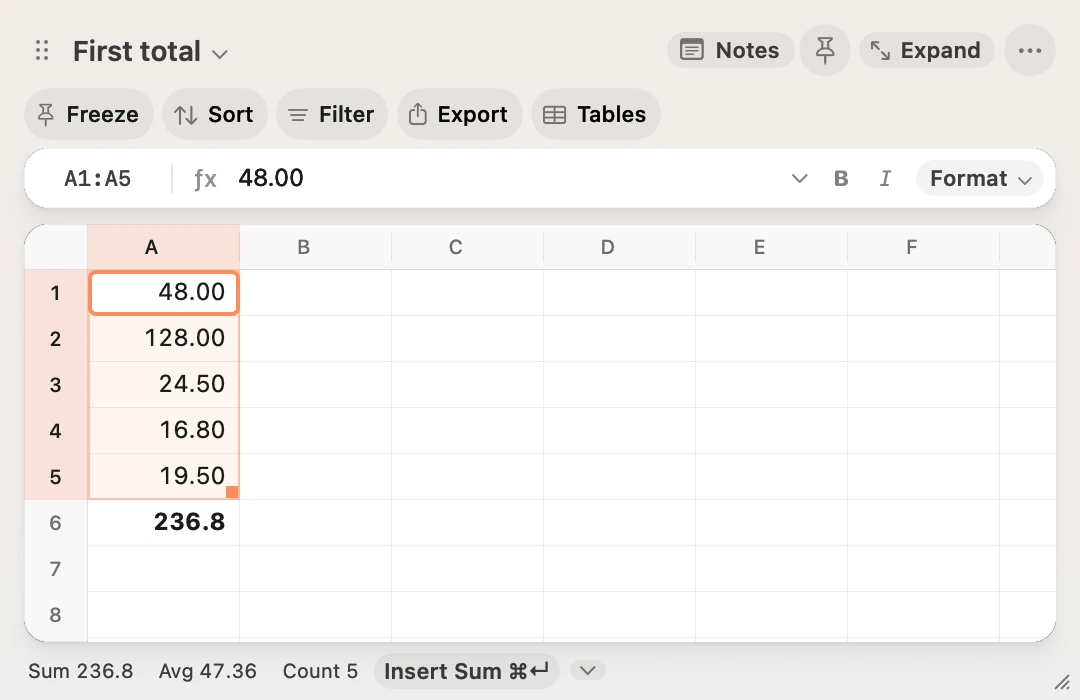
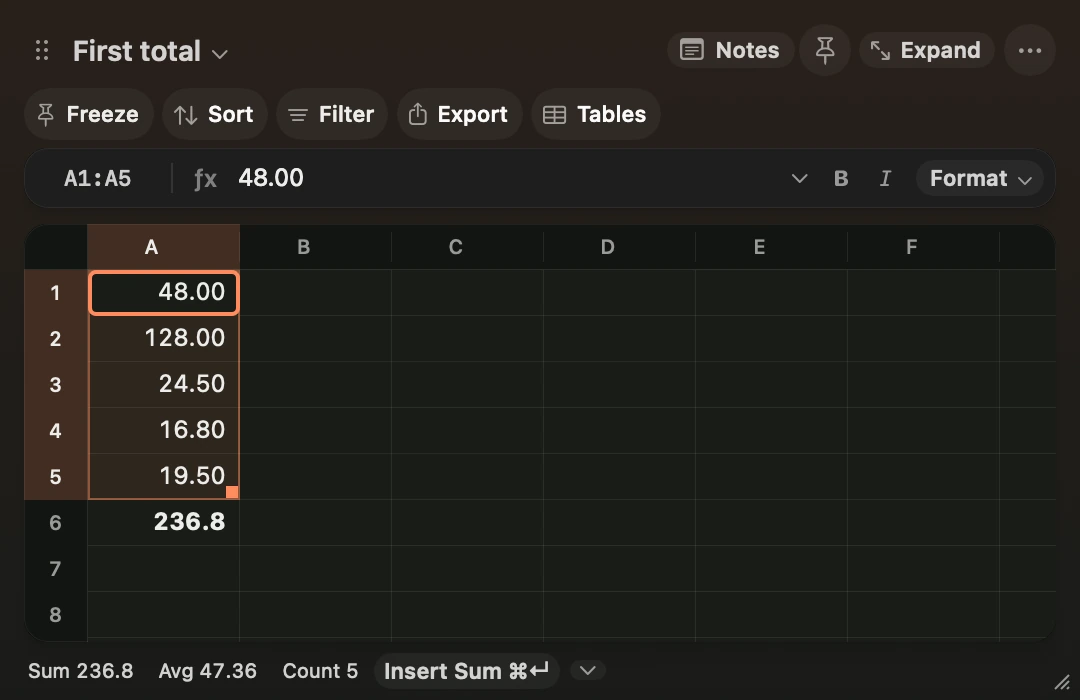
- Type a number and press Return. Repeat for five consecutive rows in column A.
- In A6, type
=suand press Tab to complete=SUM(. - Press Shift+Up five times to select A1:A5. Press Return to show the total.
- Change one of the inputs. The total updates automatically.
Use ⇧⌘N to create a sheet and ⌘K to find a sheet by name. Each sheet has its own grid, notes and column widths. Scratch autosaves the workbook locally. Delete Current Sheet removes a sheet from the workbook view. Restore Deleted Sheet recovers it, including its notes, after a restart.
Change the shortcuts
Click ⋯ → Keyboard Shortcuts to change the shortcuts for opening Scratch, capturing the clipboard, Notes or the command palette. Capture Clipboard in New Sheet is also available from the ⋯ menu and the command palette. Keyboard Shortcuts.
Choose the look and motion
Open ⋯ and choose Animation Style. Natural is the default. Snappy shortens transitions, and Off turns them off. The docked Notes pane reveals from its divider. Nearby cell jumps scroll into view, and distant ones land with a short fade. macOS Reduce Motion skips the movement. Scratch uses a solid window background when Reduce Transparency is on.
Turn on Follow System Accent in the same menu to use the accent from macOS. Scratch uses a coral accent by default. Formula references have their own colours so you can match the formula to the cells in the grid.